an honest comparison
The best Figma icon libraries, plugin by plugin
Iconify, Lucide, Phosphor, Tabler, Font Awesome, Hugeicons and more: how each one gets into Figma, whether it stays an editable vector, and which to pick for your file.
- Best all-in-one Figma icon plugin: Iconify, free, with over 300,000 open-source icons from hundreds of sets. Check each set’s licence, because a few need a credit.
- Best single sets with official Figma plugins: Lucide (clean outline), Phosphor (six weights), Tabler (over 6,000 icons) and Font Awesome (needs a free account and token).
- Best ready-made component files: Hugeicons (6,000+ free icons as components with variants), Heroicons and Bootstrap Icons (official Figma Community files).
- Best for one look across Figma, slides and code, in 34 styles: with icons. There is no plugin: you click Copy SVG and paste, and it lands as editable vectors.
- Whatever you pick, resize icons with the Scale tool (K) so the line thickness grows with them, and turn the ones you reuse into components.
On this page 10 sections
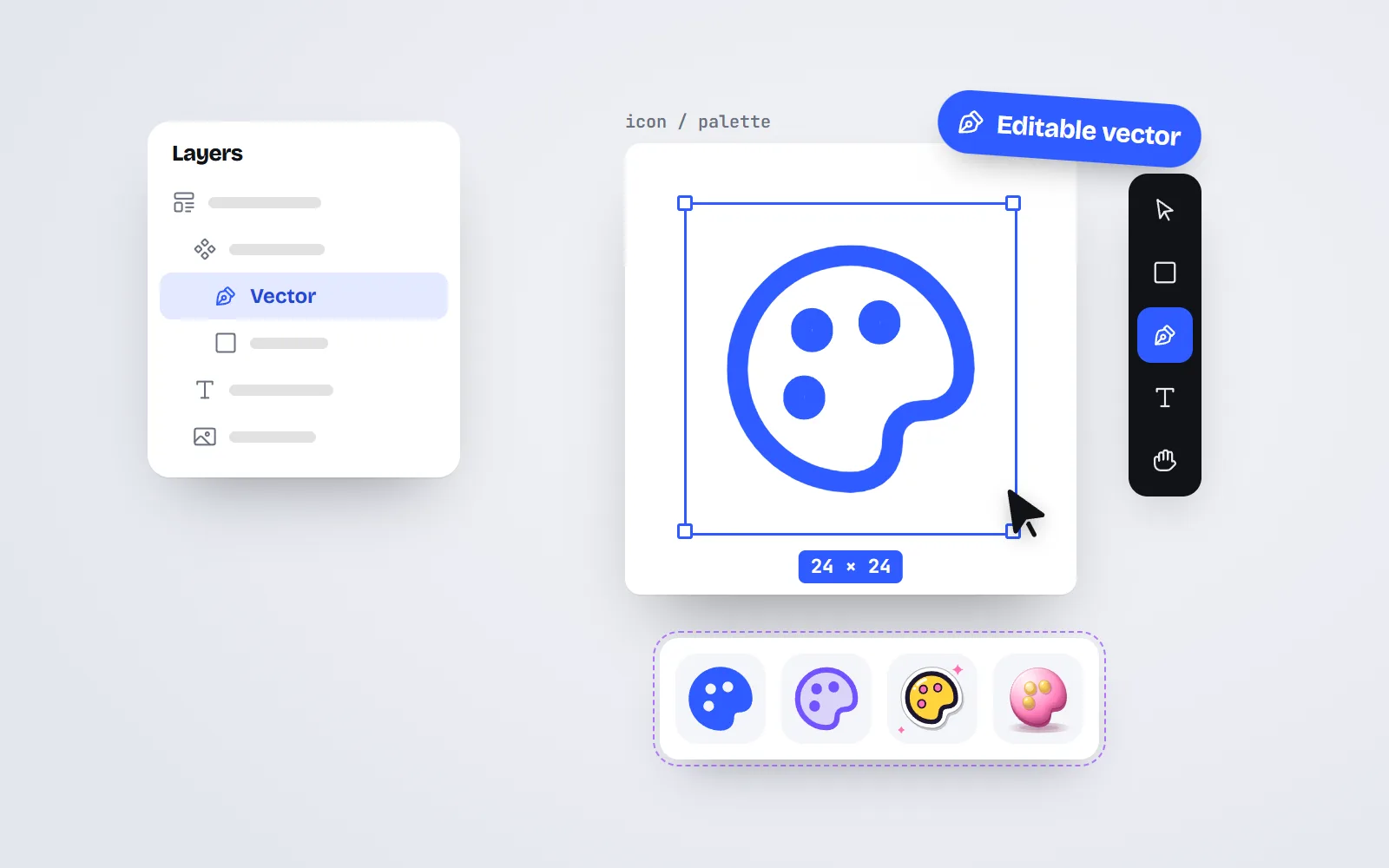
The best Figma icon library depends on how you like to work. If you want every open-source icon in one panel, install the free Iconify plugin. If you want one polished set, Lucide, Phosphor, Tabler and Font Awesome all have official plugins, and Hugeicons, Heroicons and Bootstrap Icons publish ready-made Figma files. If you want one look that matches across Figma, slides and code, with icons gives you 34 styles that paste in as editable vectors, with no plugin at all.
This guide compares the three ways icons get into Figma (plugins, community files and copy-paste SVG), then the sets themselves. It covers what designers actually trip over: icons that arrive flattened, lines that go thin when scaled, components and variants, swapping styles, and licences. Every third-party fact comes from the library’s own site, docs or GitHub, checked in November 2026.
What is the best icon library for Figma?
| Library | How it gets into Figma | Free icons | Styles | Licence | Credit needed? |
|---|---|---|---|---|---|
| Iconify | Free official plugin | Over 300,000 (many sets) | Depends on the set | Each set’s own | Some sets |
| Lucide | Official plugin | Over 2,000 | 1 outline | ISC | No |
| Phosphor | Official plugin | About 1,500 | 6 weights | MIT | No |
| Tabler Icons | Official plugin | Over 6,000 | Outline + filled, adjustable stroke | MIT | No |
| Font Awesome | Official plugin (free account + token) | Over 2,000 | Solid, Regular, Brands | CC BY 4.0 | Built into the files |
| Hugeicons | Free plugin + free Figma file | 6,000+ | 1 free (10 in Pro) | MIT (free set) | No |
| Heroicons | Official Community file | 316 | Outline, solid, mini, micro | MIT | No |
| Bootstrap Icons | Official Community file | Over 2,000 | Outline + fill | MIT | No |
| Material Symbols | SVG download from Google, or via Iconify | Over 2,500 | 3 + fill and weight axes | Apache 2.0 | No |
| with icons | No plugin Copy SVG and paste | 1000 (34,000 SVGs) | 34 | MIT | No |
A quick note on Material Symbols: Google documents the font and the SVG and PNG downloads on its own pages, but we did not find a Figma plugin that Google documents itself. The simplest routes are the free Iconify plugin, which includes Material Symbols, or downloading SVGs from Google Fonts.
Plugin, community file or copy-paste: which way is best?
There are three roads into Figma, and each suits a different kind of person.
A plugin: search without leaving Figma
A plugin opens a search panel inside your file. You type “settings”, click, and the icon drops onto the canvas. Iconify’s plugin covers hundreds of open-source sets and can import an icon as a component or a frame. Font Awesome’s plugin places the icon as an SVG at 16px high; you need a free Font Awesome account and an API token the first time, and a Pro plan for Pro icons. Tabler’s plugin lets you change size, colour and stroke width after inserting. Best for: designers who add icons all day.
A community file: a ready-made library
Some sets publish a Figma Community file you can duplicate and publish as a team library. Hugeicons’ free file has 6,000+ stroke icons, and its FAQ says every icon is a vector component, set up for variants. Heroicons and Bootstrap Icons link official files from their sites. Best for: teams building a design system who want components from day one.
Copy-paste SVG: no install at all
Figma turns pasted SVG code into real vector layers. Any site with a Copy SVG button works, including with icons: open an icon, click Copy SVG, press Ctrl+V (Cmd+V on a Mac). Nothing to install, nothing to approve with IT. Best for: occasional use, locked-down work laptops, and anyone who also needs the same icon in slides or code.
Do icons stay editable vectors in Figma?
They should, and it matters. An editable vector is made of paths you can recolour, reshape and scale without blur. A flattened icon is a picture (a PNG), so you cannot change its colour and it goes soft when enlarged.
- Plugins from the sets above insert SVG, so you get vectors.
- Community files are vectors already, usually wrapped as components.
- Copy-paste gives vectors only if you copy the SVG code. If you copy an image, you get a picture.
Multi-colour styles stay vectors too. A downloaded with icons .svg file has its colours baked in, so a clay or glass icon arrives as layered shapes you can still pick apart. For more on the two formats, read SVG vs PNG icons.
How do I scale icons in Figma without thin lines?
Most outline icons are drawn on a 24 x 24 grid with a line about 1.5 to 2px thick (ours is 1.75px). If you drag the normal resize handles, Figma keeps the line at that width, so a 96px icon looks spindly.
- 1Use the Scale tool
Press K, then drag a corner. Figma’s help centre says strokes scale as well, so the icon keeps its proportions.
- 2Or outline the stroke
Outline stroke turns each line into a filled shape. It then scales like any shape, but you can no longer change the line width.
- 3Or change the stroke on purpose
Tabler’s plugin lets you set the stroke width after inserting, and you can edit the stroke of any pasted outline icon in the right panel. Keep one value across the whole file.
Should Figma icons be components or variants?
A component is a master copy: change it once and every copy follows. Instance swap lets you replace one icon with another inside a button without rebuilding it, and Figma’s help centre explains it in its guide to swapping components and instances. Variants group related components, such as outline and filled versions of the same icon.
Hugeicons’ free file arrives as components ready for variants, which saves real time. With plugins and copy-paste you make components yourself: paste the icon, press Ctrl+Alt+K (Cmd+Option+K on a Mac), and name it clearly, for example icon/home/line.
Make one component per icon you reuse, name them by icon and style, and keep them on one page of your file. Swap icons with instance swap.
Paste a fresh icon every time you need one. Fifty loose copies of the same bell are fifty things to fix when the bell changes.
Can I swap icon styles in Figma without redrawing?
Yes, if the set offers several styles drawn on the same grid. Phosphor gives each icon six weights, from Thin to Duotone, so you can make them variants of one component. with icons goes further on looks: each of the 1000 icons is drawn once and rendered in 34 styles on the same 24 x 24 frame, so swapping line for solid, or for something bolder like gloss, never moves a pixel of your layout.
Here is how two clean outline sets compare at the same size, ours on top and Lucide’s below. Both paste into Figma as strokes you can recolour.
Which Figma icon libraries are free for commercial use?
Every set in the table allows commercial work. The difference is the fine print, and in Figma it comes from the icon set, not the plugin:
- No credit needed: Lucide (ISC), Phosphor, Tabler, Heroicons, Bootstrap Icons, Hugeicons’ free set and with icons (all MIT). Material Symbols is Apache 2.0.
- Credit built in: Font Awesome Free icons are CC BY 4.0; Font Awesome says the credit already inside its files is enough.
- Check per icon: Iconify shows each icon’s author and licence in search results. Some sets in it use CC BY, which asks for a credit.
If licence names are new to you, our plain-English licence guide explains them.

Which Figma icon library should you pick?
- Iconify if you want almost any open-source icon in one free plugin and are happy to check licences.
- Lucide if your developers build with React or shadcn/ui, so design and code use the same names.
- Phosphor if you want weights as variants, from hairline to bold.
- Tabler Icons if you keep needing rare icons and want to set the stroke width in the plugin.
- Font Awesome if you need brand logos, or your team already pays for Pro.
- Hugeicons if you want a free component file with variants, and may buy more styles later.
- Heroicons if you design for Tailwind and like a small, tidy set.
- Material Symbols if you design for Android or follow Material Design.
- with icons if the same icons must appear in Figma, slides, docs and code, or you want looks beyond outline and filled.
Plugin set or with icons?
- You want 34 matching styles, from line to clay, sketch and kawaii, on one grid
- The same icons go into Figma, PowerPoint, Notion and your React app
- You cannot install plugins on your work laptop
- You want MIT with no credit, for every icon
- You add icons all day and want search inside Figma
- You need thousands of icons, or brand logos
- You want a ready-made component file with variants
- You only ever need outline and filled
How do you get with icons into Figma?
- 1Pick your icons
Open the free icons for Figma page for a starter set, or search all 1000 in the library. Search understands everyday words, so “bin” finds trash.
- 2Copy the SVG
Choose a style and press Copy SVG. On the Figma page, one click on an icon copies it.
- 3Paste and scale
Press Ctrl+V (Cmd+V) on your canvas. The icon arrives as a 24 x 24 vector group. Resize it with the Scale tool (K).
- 4Make it a component
Press Ctrl+Alt+K (Cmd+Option+K) and name it, so you can reuse and swap it later.
The Figma guide covers recolouring strokes and fills, and keeping icons consistent explains why one set per file looks better than three. For a wider view beyond Figma, see the best free icon libraries.
Frequently asked questions
What is the best free icon plugin for Figma?
For breadth, Iconify for Figma: it is free and searches over 300,000 open-source icons from many sets in one panel. For one consistent set, the official Lucide, Phosphor or Tabler plugins are excellent and free. Hugeicons has a free plugin and a free Figma file of 6,000+ stroke icons.
Do I need a plugin to use icons in Figma?
No. Figma turns pasted SVG code into vector layers, so any site with a Copy SVG button works without a plugin. On with icons you click Copy SVG on an icon page and press Ctrl+V (Cmd+V on a Mac) on the canvas. Plugins mostly save you a trip to the browser.
Why do my icon lines look thin when I make them bigger in Figma?
Dragging the normal resize handles keeps the stroke at its original width, so a 1.75 or 2px line looks thin at 96px. Use the Scale tool (press K) instead: Figma’s help centre says strokes scale with the object. Or use Outline stroke to turn lines into filled shapes first.
Are Figma icon plugins free for commercial work?
The plugins themselves are free, but the licence comes from the icon set. Lucide (ISC), Phosphor, Tabler, Heroicons, Bootstrap Icons, Hugeicons’ free set and with icons (MIT) need no credit. Font Awesome Free icons are CC BY 4.0. Iconify shows each icon’s licence, and some sets in it require attribution.
Does with icons have a Figma plugin?
Not yet. Every icon page has Copy SVG, which pastes into Figma as editable vector layers on a 24 x 24 frame, in any of the 34 styles. The free icons for Figma page lets you copy a starter set in one click each.
Should icons in Figma be components?
Yes, for anything you use more than once. A component lets you change an icon everywhere at once, and instance swap lets you replace one icon with another without breaking the layout. Hugeicons ships its free file as components; with most other sets you make the components yourself.
Sources and notes
- Iconify for Figma (free plugin, over 300,000 icons, checked November 2026)
- Lucide README: Figma plugin and ISC licence
- lucide.dev (icon count shown on the site)
- Phosphor Figma plugin (GitHub)
- Phosphor homepage README: six weights, MIT
- @phosphor-icons/core 2.1.1 (icon count)
- Tabler docs: Figma plugin (size, colour, stroke width)
- Tabler Icons README: 6,257 icons, adjustable stroke, MIT
- Font Awesome docs: Figma plugin (free account, API token, Pro icons)
- Font Awesome Free licence (GitHub)
- Hugeicons FAQ: Figma icons (free plugin and file, components, variants)
- Heroicons website (Figma file link, 316 icons)
- Bootstrap Icons website (Figma file link)
- Google Fonts: Material Symbols guide (styles, axes, Apache 2.0)
- Figma Help: Scale layers while maintaining proportions
- Figma Help: Swap components and instances
- with icons license (MIT)
Facts about other icon sets were checked against their official sites in November 2026. Libraries change, so check the links above for the latest numbers.