a plain-English guide
What resolution do icons need for print?
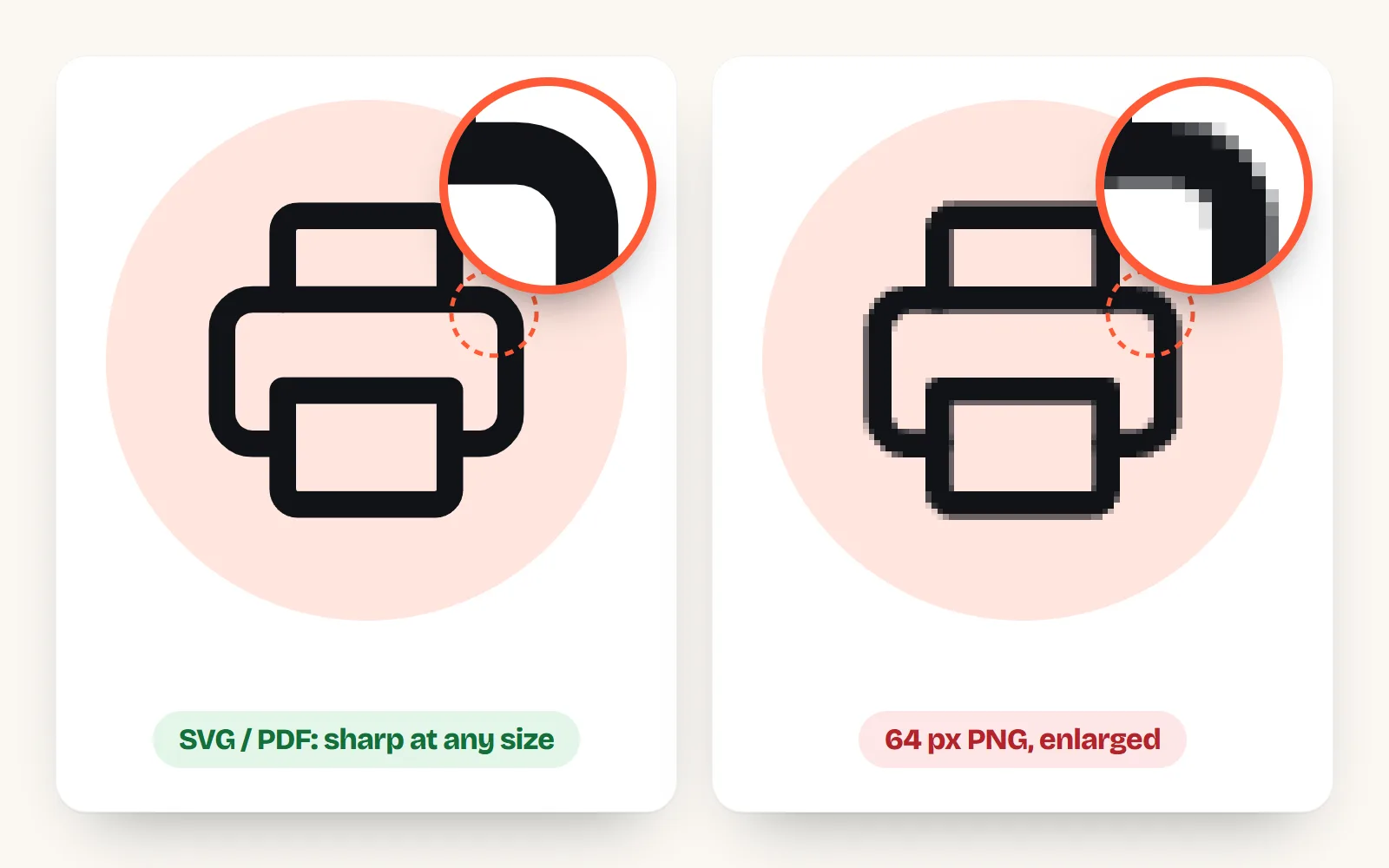
Vector icons have no resolution at all, so they print sharp at any size. PNGs need enough pixels. Here is the one formula, a size table for cards, flyers, posters, banners and T-shirts, and CMYK in plain words.
- Vectors have no resolution: an icon saved as SVG, PDF or EPS prints sharp at any size, from a business card to a banner. Use one whenever the printer or app accepts it.
- For PNG, pixels = inches x 300. A 2-inch icon needs 600 px. A 512 px PNG prints sharp only up to about 1.7 inches.
- Big prints seen from afar need less: printers suggest about 200 DPI for a 24 x 36 inch poster and 100 to 200 DPI for banners viewed from a distance.
- CMYK vs RGB: screens mix light, printers mix ink, so very bright colours can print a little duller. Ask for a proof when colour matters.
- From with icons: download the PDF (vector, sized in points), EPS for older tools, SVG for Canva or Illustrator, or a PNG up to 4,096 px.
On this page 10 sections
Icons saved as vectors (SVG, PDF or EPS) have no resolution, so they print sharp at any size, from a business card to a billboard. Use one whenever your printer or design app accepts it. If you must use a PNG, it needs enough pixels for the printed size: width in inches x 300. A 2-inch icon needs a 600 px PNG; a big poster seen from across a room can get away with 150 to 200 pixels per inch.
Most print guides are written for photos and stop at "use 300 DPI". This one turns that into icon sizes, explains why icons are usually easier than photos, and shows which files to download.
Do vector icons have a resolution?
No, and that is the whole trick. A vector file stores shapes ("a circle here, a line from here to there"), not a grid of coloured dots. The printer draws those shapes fresh at whatever size you print, so the edges are as crisp at 30 inches as at 1 inch. Custom Ink’s resolution guide says it simply: vectors have no fixed resolution.
Icons are perfect for this, because they are simple shapes in the first place. Every with icons icon is drawn as a vector, so the SVG, PDF and EPS downloads are all true vectors. Our SVG vs PNG guide explains the difference in more depth.
How many pixels does a PNG icon need for print?
Printers measure detail in DPI (dots per inch), and for pictures that means pixels per inch. The rule for anything held in the hand is 300. So:
pixels needed = printed width in inches x 300 (or millimetres ÷ 25.4 x 300)
| PNG size | Prints sharp up to (300 DPI) | For a poster seen from afar (150 DPI) |
|---|---|---|
| 256 px | 0.85 in (2.2 cm) | 1.7 in (4.3 cm) |
| 512 px | 1.7 in (4.3 cm) | 3.4 in (8.7 cm) |
| 1,024 px | 3.4 in (8.7 cm) | 6.8 in (17.3 cm) |
| 2,048 px | 6.8 in (17.3 cm) | 13.7 in (34.7 cm) |
| 4,096 px | 13.7 in (34.7 cm) | 27.3 in (69.4 cm) |
Vistaprint’s business card guide adds a warning worth repeating: changing a file’s resolution label from 72 to 300 does not restore missing detail. Only a bigger original, or a vector, does.
What size should icons be on business cards, flyers, posters and shirts?
Here are typical icon sizes for common print jobs, and the PNG pixels each needs. The DPI column uses what printers themselves recommend for that job. If you use the vector file, ignore the pixel column completely.
| Print job | Typical icon size | DPI to use | PNG pixels needed |
|---|---|---|---|
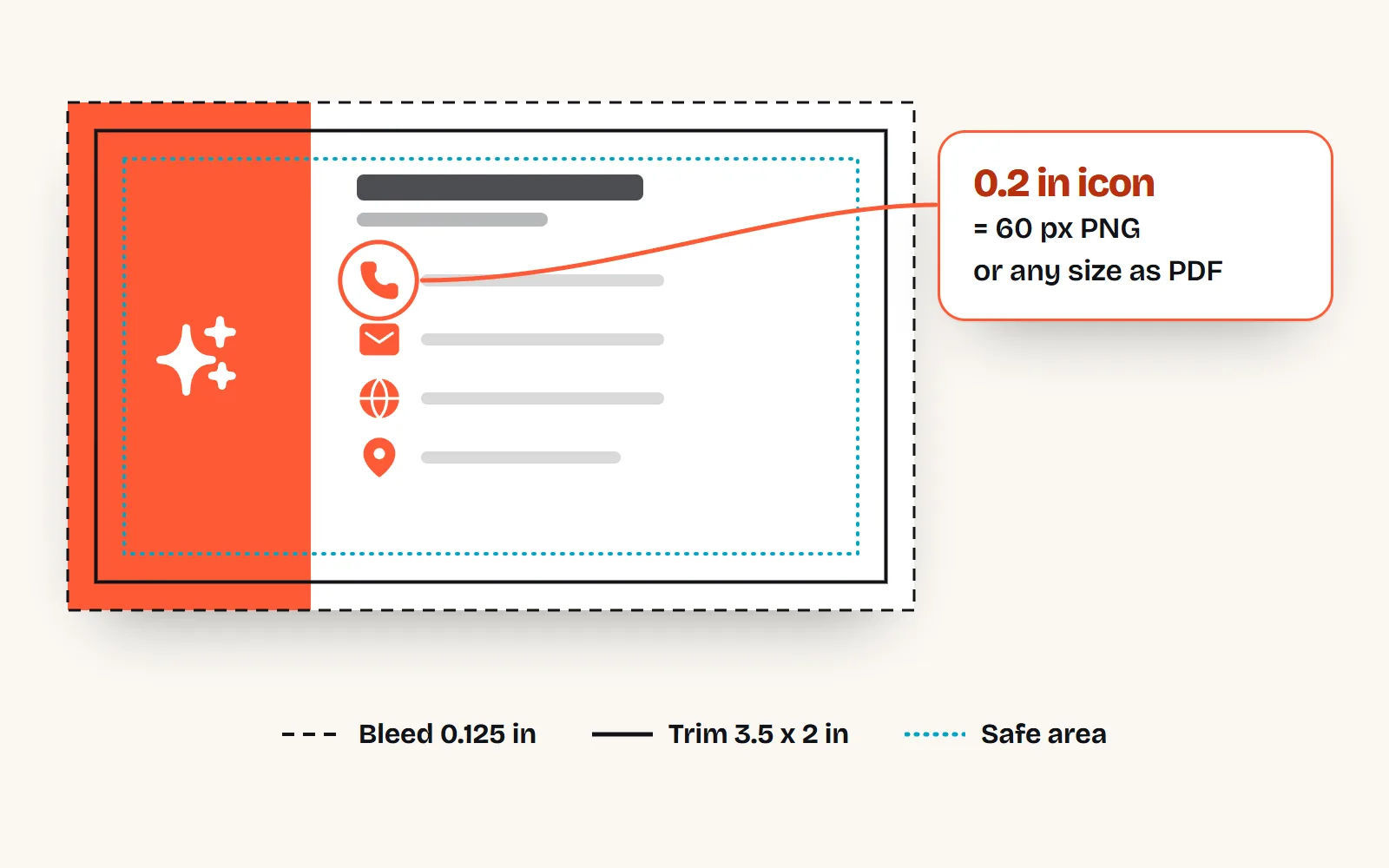
| Business card (3.5 x 2 in) | 0.15 to 0.5 in | 300 | 45 to 150 px (use 300+ to be safe) |
| Flyer (Letter or A4) | 0.5 to 2 in | 300 | 150 to 600 px |
| Sticker or label (3 in) | 1 to 3 in | 300 | 300 to 900 px |
| Poster (24 x 36 in) | 2 to 6 in | 200 to 300 | 400 to 1,800 px |
| Banner seen from metres away | 6 to 24 in | 100 to 200 | 600 to 4,800 px |
| T-shirt, left chest (3.5 in) | 3.5 in | 200 to 300 | 700 to 1,050 px |
| T-shirt, full front (12 x 14 in) | 12 in wide | 200 to 300 | 2,400 to 3,600 px wide |
Custom Ink, for example, asks for at least 200 DPI at the printed size and prefers 300 for fine detail. Vistaprint suggests 300 DPI for close viewing, about 200 DPI for a 24 x 36 inch poster and 150 DPI for 36 x 48 inches. Small text and thin lines are the first things to suffer at lower numbers, so give icons the higher figure when you can.
Why do icons look thin or faint when printed small?
Because a line icon’s stroke shrinks with it. Our Line style has a stroke of 1.75 units on a 24-unit grid, so the line is about 7% of the icon’s width. On a quarter-inch icon that is about 1.3 points (0.46 mm); on a half-inch icon, about 2.6 points. Both print fine, but very small icons on textured or coloured card can look weak.
For business cards and small labels, try the Solid style: filled shapes keep their weight at tiny sizes and survive cheaper printing better.
What is the difference between CMYK and RGB?
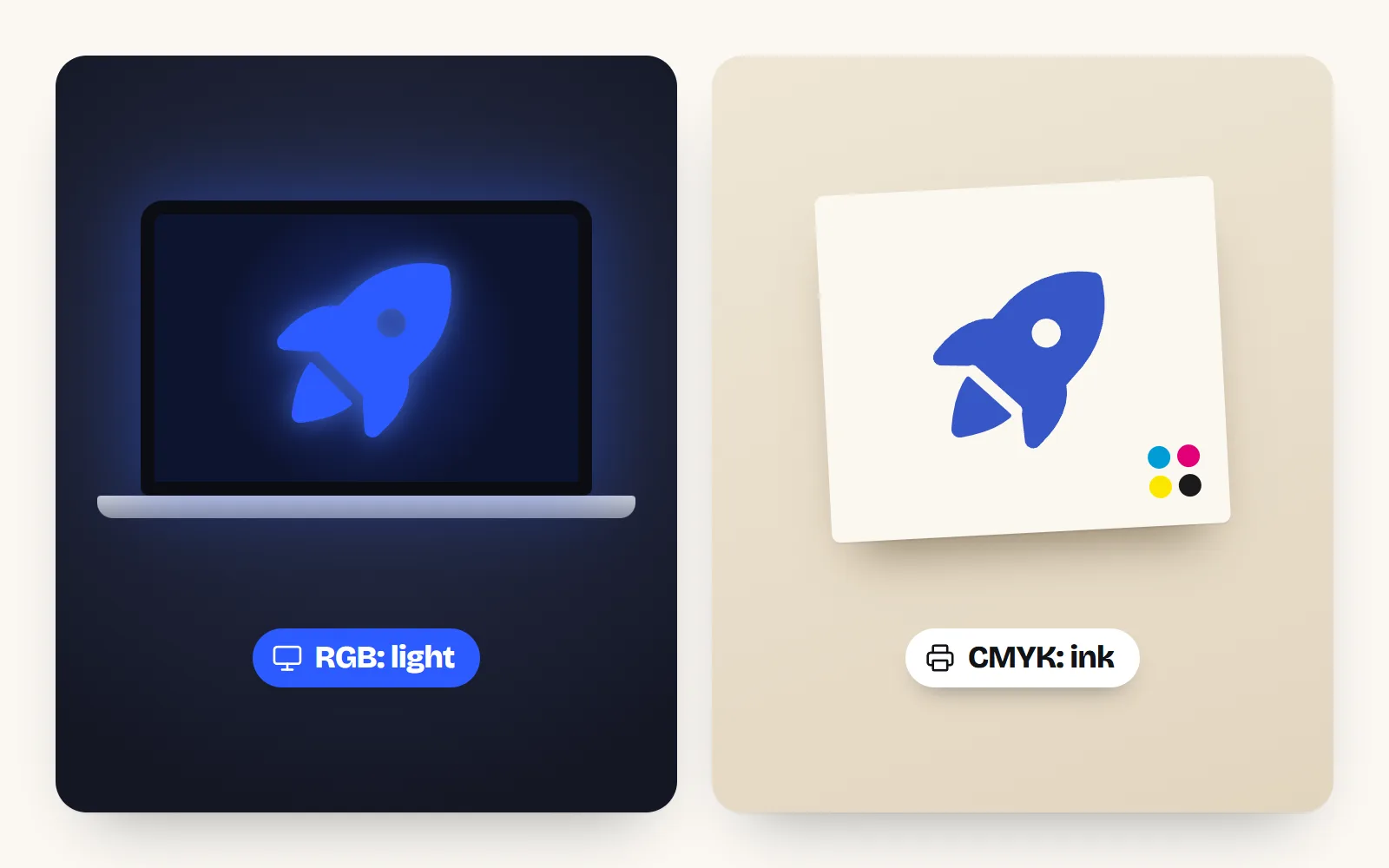
Screens make colour by mixing light: red, green and blue (RGB). Printers make colour by mixing ink: cyan, magenta, yellow and black (CMYK). Light can make some colours that ink cannot, especially glowing blues, greens and neon pinks. When an RGB file is printed, those colours are moved to the nearest one ink can make, so they can look a little duller on paper.
- Most print shops convert for you. Vistaprint’s guide advises converting to CMYK when your software allows it and using the printer’s recommended colour profile, and warns that a screen preview cannot promise an exact match.
- Shirts can be different. Custom Ink’s guide asks for transparent RGB PNGs for direct-to-garment and DTF printing.
- Canva: its help centre describes a "PDF Print" download with bleed, crop marks and a CMYK option on paid plans.
- Brand colours matter? Order a printed proof before a big run.
What files do print shops want?
The short version from the printers’ own guides: PDF first (Vistaprint calls it the best file type for printing posters), SVG and Adobe Illustrator files usually accepted, EPS for older workflows, and PNG or JPG only at the right resolution. Two more things to check:
- Bleed and safe area. Artwork that runs to the edge needs 0.125 in (about 3 mm) of extra background past the cut line, and icons and text should sit inside the safe area, about 0.125 to 0.25 in in from the edge. Start from the printer’s template for your product.
- Fonts. Icons from with icons contain no text, so there is nothing to embed or outline. Your own text still needs embedding or outlining; keep an editable copy first.
How do I download print-ready icons from with icons?
- 1Open the icon’s page
Search the library in everyday words, pick a style and a colour, for example printer.
- 2Choose a vector for print
Press Download. PDF is a true vector that prints razor sharp; you set its size in points (72 points = 1 inch, so the default 144 is 2 inches), and it scales anyway. EPS is for older print tools; it has no transparency, so see-through parts are blended onto your background or white. SVG is for Canva, Illustrator, Affinity and Figma.
- 3Or a big enough PNG
If the tool only takes pictures, choose PNG and type a size up to 4,096 px, or switch on @2x for twice that. Pick the colour it will sit on if you need a solid background.
- 4Skip Copy image for print
Copy image pastes a PNG of at least 256 px, perfect for slides and docs but sharp in print only below an inch. For Word, the Word download places a vector icon that stays sharp in Word 365.
Our which file should I download? guide compares every format, and the Canva guide shows how to bring SVGs into a print design.
Place the PDF or SVG in your layout, check the proof, and give icons on cards and labels a solid style or a strong colour.
Screenshot an icon from a website and stretch it across a poster. A 64 px image has enough detail for about a fifth of an inch.
Do colourful and 3D icon styles print well?
Yes. The PDF download keeps real gradients, so styles like Clay style, Glass style and Soft 3D print with their shading intact. Very soft, see-through layers are the one thing to watch in EPS, which has no transparency and blends them onto the background instead. If in doubt, use the PDF.
The short answer
Use vectors (PDF, SVG or EPS) for print and resolution stops mattering. If you must use PNG, give it printed inches x 300 pixels, or 150 to 200 for big posters seen from a distance. Ask for a proof when colour matters. For screen sizes, see our icon sizes guide, and for vector icons ready to download, start at free SVG icons.
Frequently asked questions
What DPI do I need for icons on a poster?
If the icon is a vector (SVG, PDF or EPS), none: it prints sharp at any size. For a PNG, 300 DPI at the printed size is the safe rule for things seen up close. For posters seen from a few steps away, printers such as Vistaprint suggest about 200 DPI for 24 x 36 inches and 150 DPI for 36 x 48 inches.
How big should a PNG icon be for printing?
Multiply the printed width in inches by 300. A half-inch icon on a business card needs 150 px, a 2-inch icon on a flyer needs 600 px and a 10-inch icon on a shirt needs 3,000 px (or 2,000 px at the 200 DPI many shirt printers accept).
Why do my icons look blurry when printed?
Usually because a small PNG was stretched. A 128 px icon copied from a website has only enough detail for about 0.4 inches at 300 DPI. Changing the file’s DPI setting does not add detail. Use the SVG or PDF version, or download a PNG at the size you actually need.
Do I need to convert icons to CMYK?
Not always. Most print shops convert RGB files for you, and shirt printers using direct-to-garment often ask for RGB PNGs. If exact colour matters, convert in your design tool using the printer’s colour profile, or order a proof, because a screen preview cannot promise an exact match.
Which file format is best for printing icons?
PDF is the safest: it is vector, keeps transparency and every print shop accepts it. SVG works in Canva, Illustrator, Affinity and Figma. Use EPS only when a printer or older tool asks for it, and PNG only when nothing else is accepted.
Sources and notes
- Vistaprint: Poster printing preparation guide (9 June 2026), checked November 2026
- Vistaprint: Business card file prep, checked November 2026
- Custom Ink: Image resolution guide (14 May 2026), checked November 2026
- Canva Help: Choose the right download file type
- Canva Help: Use margins, bleed, rulers and crop marks
- with icons: which file should I download?
Facts about other icon sets were checked against their official sites in November 2026. Libraries change, so check the links above for the latest numbers.