a plain-English guide
How to add icons in Excel and Google Sheets
Spreadsheets can hold real icons now: inside cells, next to data, even stacked into a picture chart. Here is what each app can do in 2026, and where the old tutorials send you the long way round.
- Icons in a cell, Google Sheets: Insert › Image, then choose “in the cell”. It takes PNG, JPG or GIF under 50 MB (no SVG), and the icon moves with its row when you sort.
- Icons in a cell, Excel: Insert › Pictures › Place in Cell, in Excel for Microsoft 365 and Excel 2024. Older Excel can only float pictures over cells.
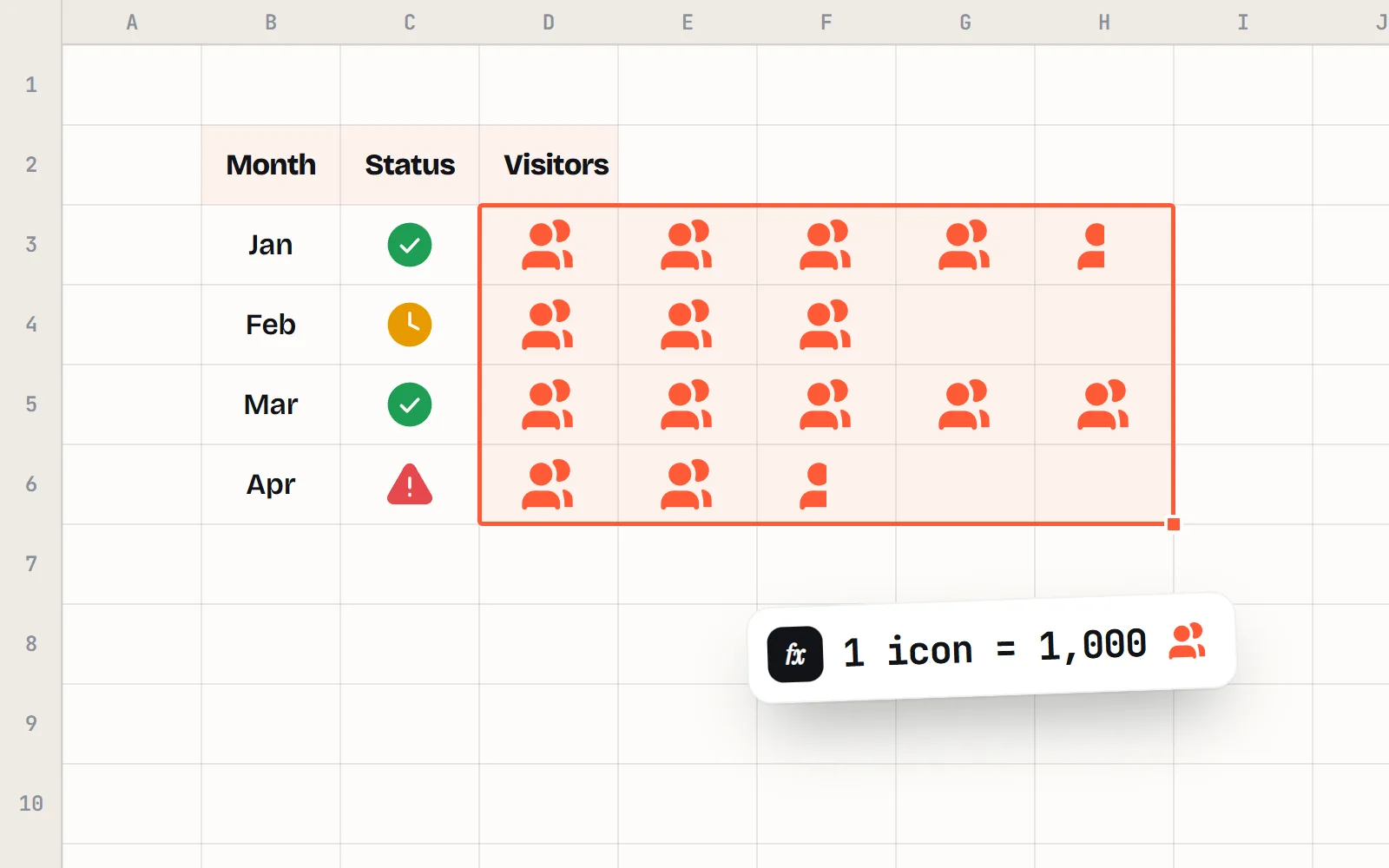
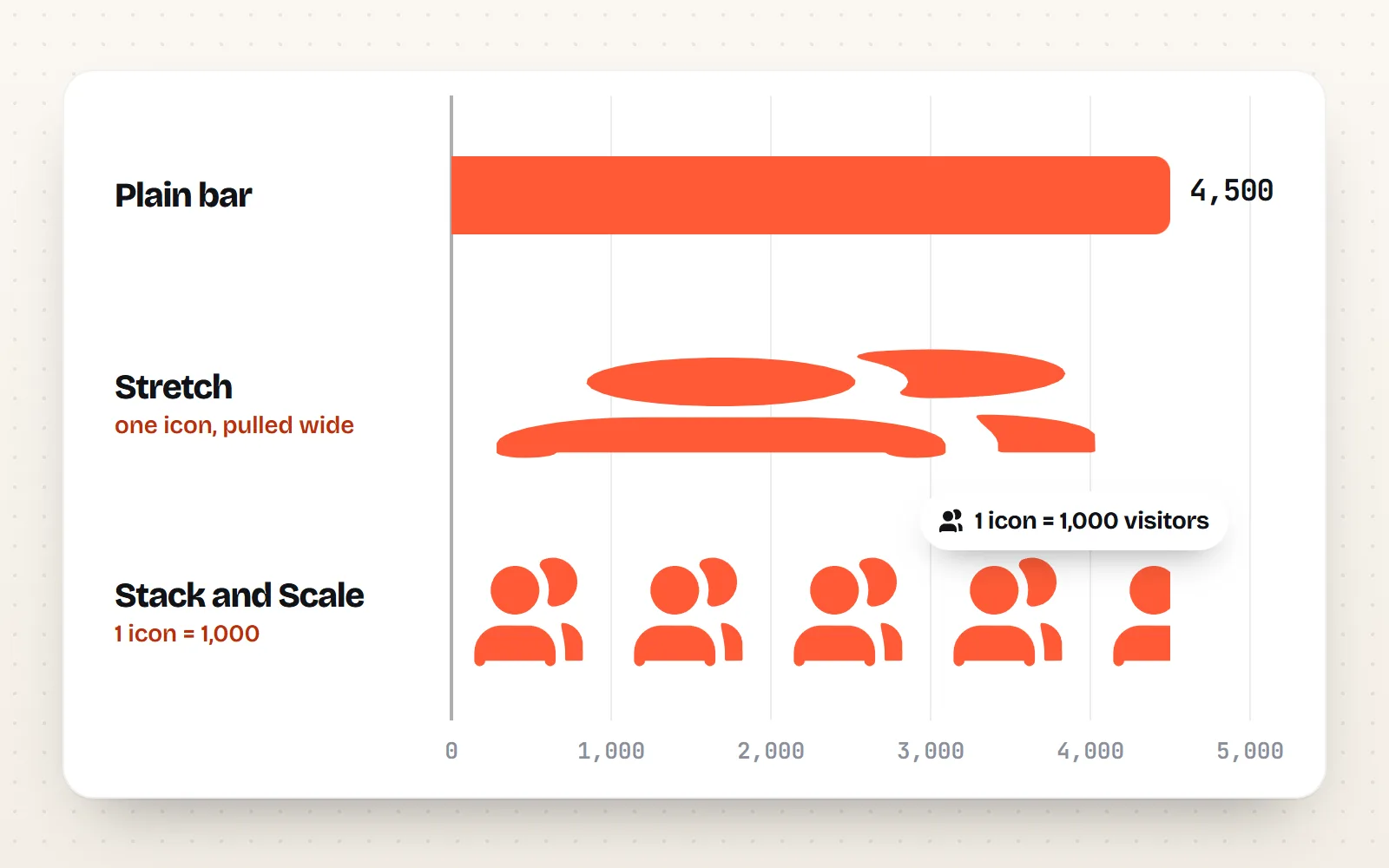
- Picture charts: in Excel, fill a bar with a PNG icon and choose “Stack and Scale with” N units per picture. Google Sheets charts cannot fill bars with pictures.
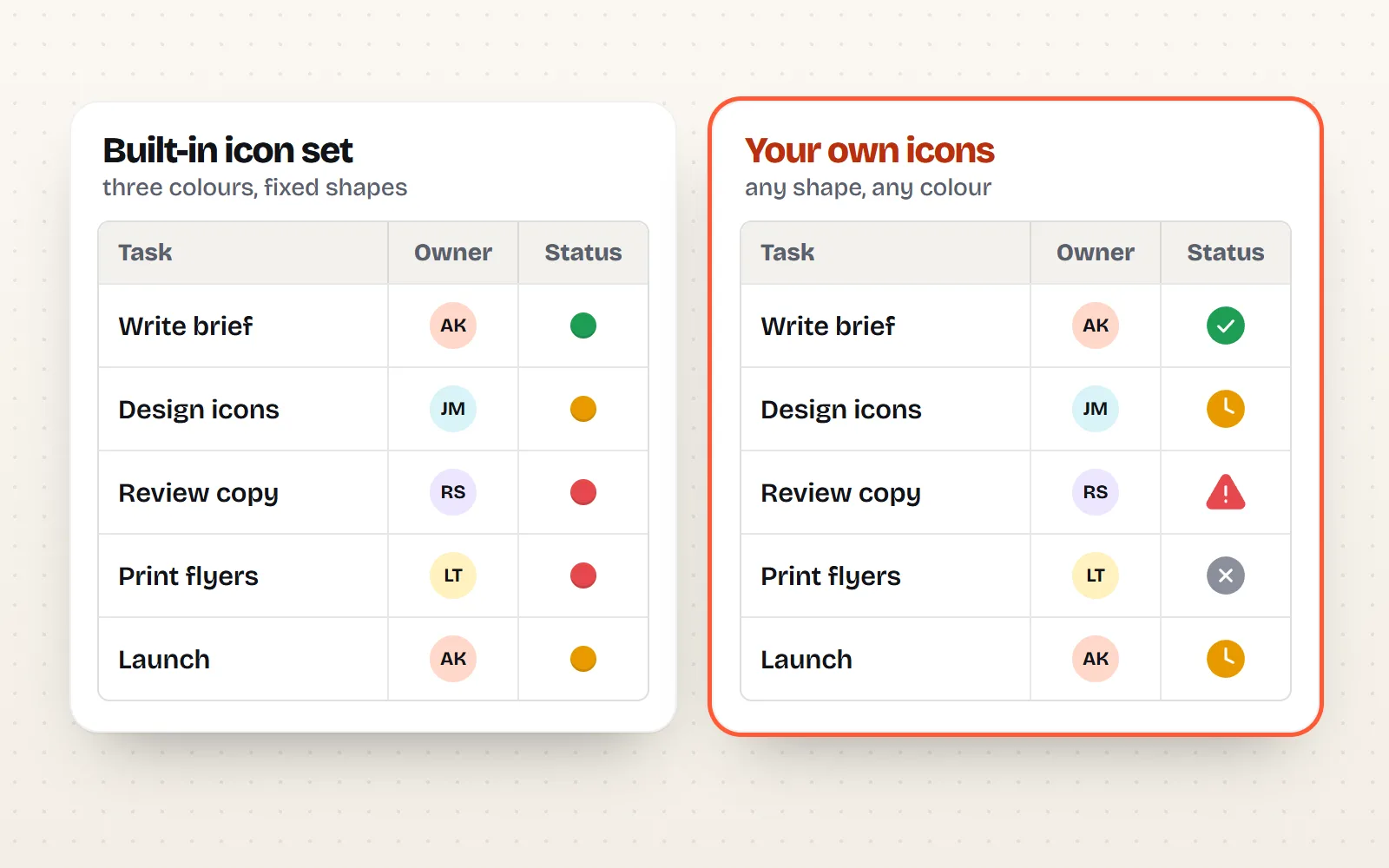
- Icon sets are not icons: Excel’s conditional-format icon sets are a fixed built-in collection. For your own icons, place PNGs in cells.
- =IMAGE() needs a public picture link. with icons does not host single PNG files you can link to, so download the PNG (any size, any colour, 1000 icons) and insert it.
On this page 10 sections
You can put real icons inside spreadsheet cells in both apps today. In Google Sheets, choose Insert › Image and place it in the cell; in Excel for Microsoft 365 or Excel 2024, choose Insert › Pictures › Place in Cell. Both want a PNG (not SVG). For icon charts, Excel can stack an icon inside each bar with “Stack and Scale”, while Google Sheets charts cannot use pictures at all.
Most tutorials that rank for this were written for Excel 2016, when icons could only float on top of the grid, and many send Sheets users to paid add-ons for something Sheets has done natively since 2019. This guide covers what works now, in plain steps, plus one honest limit of our own: you cannot hotlink with icons PNGs, so you download them instead.
Can you put icons in Excel and Google Sheets?
| What you want | Google Sheets | Excel for Microsoft 365 / 2024 | Excel 2021 and older |
|---|---|---|---|
| Icon inside a cell | Insert › Image, in the cell | Place in Cell | Floating only |
| Icon from a web link | =IMAGE(url) | =IMAGE(url) | No |
| Built-in icon library | No | Insert › Icons | 2019 and 2021 have a smaller set |
| Icons inside chart bars | No | Picture fill, Stack and Scale | Picture fill, Stack and Scale |
| Traffic lights by value | Colours only | Icon sets | Icon sets |
| SVG in a cell | No | No (floating SVG is fine) | No |
How do you put an icon in a cell in Google Sheets?
Google added images in cells in March 2019, and its announcement put the big benefit simply: the image is tied to its row and “will move along with the data”. Sort or filter, and the icons go with their rows instead of piling up on top of the sheet.
- 1Get the icon as a PNG
Open the icon in the library, for example check-circle. Pick your colour and download a PNG at 256 px. That is plenty for a cell, and it shrinks cleanly.
- 2Click the cell
Select the cell where the icon should go. It needs to be empty: Google says a cell with an image cannot also hold text.
- 3Insert it in the cell
Choose Insert › Image, choose to place the image in the cell, then upload your PNG. Google accepts .png, .jpg or .gif under 50 MB, and says SVG isn’t supported.
- 4Make it bigger if needed
The icon fits itself to the cell. Drag the row taller and the column wider to make it larger.
Already placed an image over the cells? Select it and choose “Put image in selected cell” from its menu. To reuse one icon (say, a green tick for “done”), just copy the cell and paste it down the column.
What about the IMAGE function?
Both apps also have a formula that shows a picture from a web address. In Sheets it is =IMAGE(url, [mode], [height], [width]), where mode 1 fits the image into the cell and mode 4 lets you set an exact size. Excel’s version is =IMAGE(source, [alt_text], [sizing], [height], [width]). The formula is handy when the pictures already live online, like product photos in a catalogue.
- The link must be public. Sheets will not use links hosted at drive.google.com. Excel needs an https link, does not show pictures that need a login, and blocks links that redirect.
- No SVG. Google says SVG isn’t supported. Excel’s list is BMP, JPG, GIF, TIFF, PNG, ICO and WEBP (WEBP not on the web or Android).
How do you put an icon in a cell in Excel?
Excel caught up with Sheets more recently. Microsoft previewed pictures in cells with Insiders in July 2023, and today its help page lists Place in Cell for Excel for Microsoft 365 and Excel 2024.
- 1Download a PNG
Pick the colour on the icon page and download 256 px. Excel also accepts JPG, BMP, ICO, WEBP, TIFF and non-animated GIF in cells, but PNG keeps the see-through background.
- 2Choose Place in Cell
Select the cell, then Insert › Pictures › Place in Cell › This Device, and choose the file.
- 3Mind the paste
Microsoft notes that a plain Ctrl+V pastes a picture over the cells, not into one. Right-click the floating picture and choose Place in Cell to drop it in.
On Excel 2021 or older there is no Place in Cell. Insert the picture, size it to fit the cell, then open Format Picture › Size & Properties and choose “Move and size with cells”, so it at least follows the cell when rows change height. It still will not sort with the data.
Excel for Microsoft 365 also has its own Insert › Icons library (in desktop Excel, not Excel for the web). Those icons float over the grid. If the button is missing or grey, the causes are the same as in PowerPoint; see why Insert › Icons is missing.
Are conditional formatting icon sets the same as icons?
No, and mixing them up is where a lot of confusion starts. Excel’s icon sets are a conditional formatting rule: Excel looks at each number and puts a small symbol next to it, sorting values into three to five groups with arrows, traffic lights, flags and similar marks. You can mix symbols from different built-in sets, or hide them for some cells, but you cannot add your own pictures. Google Sheets’ conditional formatting changes text and fill colours, with no icon sets.
Use Excel’s icon sets when the icon must update itself as numbers change, like a KPI that turns red below target. Use your own PNG icons for labels that rarely change: categories, status, people, product types.
Hunt for an add-on to change the traffic-light look. Icon sets are fixed; if you want your brand’s style, place real icons in cells instead.
A middle path that works in both apps: put one icon per status in a small “key” area, then copy the matching icon cell next to each row as you update it. It is manual, but it looks far better than a row of default dots.
How do you make a pictograph chart in Excel?
A pictograph (or icon chart) shows numbers as rows of little pictures: each person icon is 1,000 visitors, each coin is $100. Excel has done this since long before the current versions, and the steps are the same in Microsoft 365, 2024 and 2021.
- 1Make a bar or column chart
Select your data and insert a clustered bar or column chart.
- 2Open the fill settings
Right-click one of the bars and choose Format Data Series, then Fill › Picture or texture fill.
- 3Insert your icon
Click Insert and choose the PNG file. If you copied an icon instead (Copy image on an icon page), the Clipboard button uses that.
- 4Choose Stack and Scale with
Select Stack and Scale with, then type how many units one icon stands for, for example 1000. A bar of 4,500 now shows four and a half icons.
- 5Tidy up
Set Gap Width lower so the icons are bigger, remove the gridlines, and label the bars with their values. One colour per series reads best.
Use a square PNG at about 256 to 512 px, in the Solid style style: filled shapes stay readable when Excel shrinks them, where thin outlines can fade. The people and chart categories are a good place to start.
Can Google Sheets make icon charts?
Not the Excel way. The Sheets chart editor lets you change colours, borders, fonts and gridlines, but it has no picture fill for bars. You still have three good options:
- Icons in cells: place the same icon in a row of cells, one per unit (five cells for five thousand). It is a true pictograph and it lives right next to the data.
- A quick text bar:
=REPT("●", ROUND(B2/1000))repeats a symbol once per thousand. Not a real icon, but it updates with the numbers. - Build it where pictures work: make the chart in Excel, or lay out icons in Google Slides or Canva, then bring the finished image back. Slides is often the right home anyway, if the chart is going into a deck.
What size and style should spreadsheet icons be?
Cells are small, so icons are usually shown at 16 to 32 px. At those sizes simple, filled shapes read best. Download a bigger PNG (128 to 256 px) and let the app shrink it; that stays sharp, while a tiny PNG stretched up goes blurry.
More on sizes in our icon sizes guide, and on why PNG is the right file here in SVG vs PNG icons. If you are not sure which download to pick for an app, which file should I download? answers it in one page.
The short answer
To put icons in cells, use Insert › Image (in the cell) in Google Sheets, or Insert › Pictures › Place in Cell in Excel for Microsoft 365 and 2024, with a PNG. For icon charts, Excel’s picture fill with Stack and Scale does it in a minute; in Google Sheets, repeat icons in cells or build the chart in Slides. Use Excel’s icon sets only when the symbol must change with the numbers. And for the icons themselves, free PNG icons in your colour are one click away.
Frequently asked questions
How do I insert an icon into a cell in Google Sheets?
Click the cell, choose Insert › Image, then pick the option to place the image in the cell, and upload a PNG. Google says images must be under 50 MB in .png, .jpg or .gif, SVG is not supported, and a cell with an image cannot also hold text.
Does Google Sheets have an icon library like Excel?
No. Google Sheets has no Insert › Icons menu. You bring your own icons as images, either uploaded into cells or loaded from a public link with the IMAGE function.
Can I use SVG icons in Excel or Google Sheets cells?
Not in cells. Google says SVG isn’t supported for images in Sheets or the IMAGE function, and Excel’s Place in Cell and IMAGE lists name PNG, JPG, GIF, BMP, ICO, TIFF and WEBP, not SVG. Excel can show SVG as a floating picture, but for cells use PNG.
How do I make a pictograph chart in Excel?
Make a bar or column chart, right-click a bar, choose Format Data Series › Fill › Picture or texture fill, insert a PNG icon, then pick Stack and Scale with and type how many units each icon stands for.
Can Google Sheets make a chart with icons?
Not with picture-filled bars: the chart editor changes colours, borders and fonts, not pictures. Use repeated icons in cells, a quick REPT text bar, or build the picture chart in Excel, Google Slides or Canva.
Can I link to with icons PNGs with =IMAGE()?
No. Our public CDN serves SVG files, and the IMAGE functions in Sheets and Excel do not show SVG. Download the PNG from the icon page and insert it, or host the PNG on a public site you control and link to that.
Sources and notes
- Google Docs Editors Help: Add an image to a spreadsheet (PNG/JPG/GIF under 50 MB, no SVG), checked Nov 2026
- Google Docs Editors Help: IMAGE function (Sheets), checked Nov 2026
- Google Workspace Updates: Insert images in cells in Google Sheets (19 March 2019)
- Google Docs Editors Help: Use conditional formatting rules in Google Sheets, checked Nov 2026
- Google Docs Editors Help: Add & edit a chart or graph, checked Nov 2026
- Microsoft Support: Insert picture in cell in Excel (Microsoft 365, Excel 2024), checked Nov 2026
- Microsoft Support: IMAGE function (Excel), checked Nov 2026
- Microsoft 365 Insider blog: Insert pictures in cells in Excel (July 2023 preview)
- Microsoft Support: Use conditional formatting to highlight information in Excel (icon sets), checked Nov 2026
- Microsoft Q&A: Stack and Scale in a column chart
- Microsoft Support: Insert icons in Microsoft 365, checked Nov 2026
Facts about other icon sets were checked against their official sites in November 2026. Libraries change, so check the links above for the latest numbers.