a plain-English guide
Why is Insert › Icons missing or greyed out in PowerPoint?
The Icons button lives in PowerPoint’s Insert tab, until one day it doesn’t. Here are the real reasons, a fix for each one, and what to use when you can’t turn it back on.
- Insert › Icons is an online feature. Microsoft lists it as a “connected experience that downloads online content”, so it needs an internet connection and that privacy setting switched on.
- Greyed out? Usually connected experiences are off. Turn them on in File › Account › Account Privacy › Manage Settings. On a work or school account, your IT admin decides.
- Missing? Check your version: Microsoft lists Microsoft 365 and Office 2024, 2021 and 2019. Office 2016 has no Icons button, and 2016 and 2019 lost support on 14 October 2025.
- Only a few icons? Office 2021 and non-subscribers get “a portion of the library”; Microsoft 365 subscribers get all of it.
- Can’t fix it? Insert your own icons with Insert › Pictures. with icons gives you SVG, PNG and a ready PowerPoint slide for 1000 icons in 34 styles, free.
On this page 8 sections
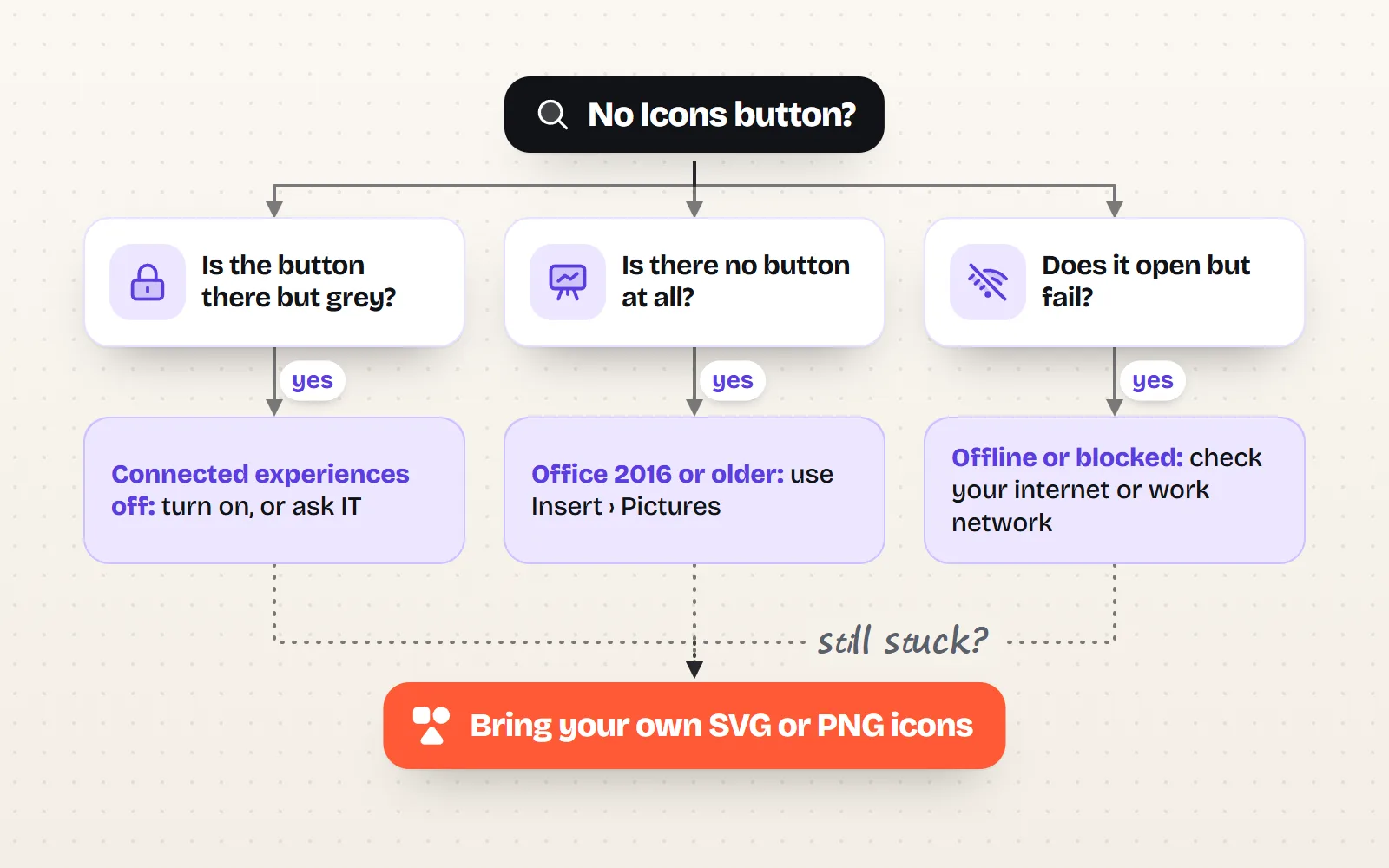
Insert › Icons goes missing or turns grey in PowerPoint for one of four reasons: your version doesn’t have it (Office 2016 and older never did), connected experiences are switched off by you or your IT admin, you are offline, or you are in an app that doesn’t offer it, such as Word for the web. The fix for the most common one is under File › Account › Account Privacy › Manage Settings.
The forum answers on this contradict each other, because each one is right about one cause and wrong about the rest. So this post sorts the causes, tells you how to spot yours in a few seconds, and gives the fix. If none of them works for you, the last part shows how to get just as good icons from outside Office. For the everyday how-to (inserting, recolouring and sizing an icon), see our PowerPoint guide.
Why is Insert › Icons missing or greyed out?
| What you see | Most likely cause | Quick fix |
|---|---|---|
| Button is there but grey | Connected experiences that download online content are off | Turn them on in Account Privacy, or ask IT |
| Button opens, then errors or spins | No internet, or a work network blocking Microsoft’s content service | Try another network, or ask IT |
| No Icons button at all | Office 2016 or older | Use Insert › Pictures with your own icons |
| No button in Word or Excel online | Only PowerPoint has it among the web apps | Use desktop Word or Excel, or PowerPoint for the web |
| It works, but very few icons | Office 2021 or no subscription: “a portion of the library” | Sign in with Microsoft 365, or bring your own icons |
| Button vanished in a narrow window | The ribbon squashed the Illustrations group | Widen the window, or open Illustrations |
Why is the Icons button greyed out? Connected experiences
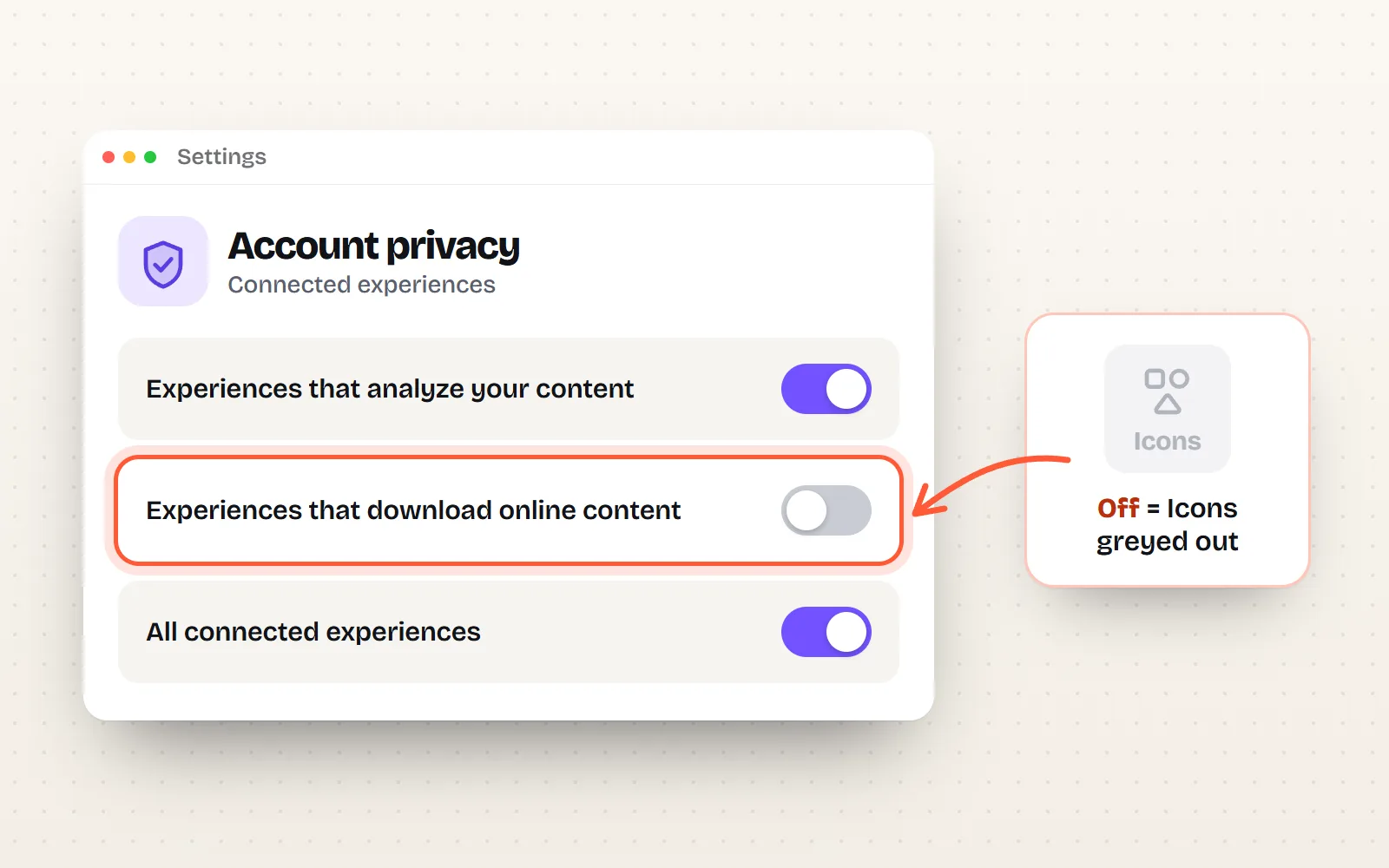
This is the cause most people never find, because it lives in a privacy screen. Microsoft lists “Insert icons” under connected experiences that download online content, next to templates, cloud fonts and online pictures. The icons are not stored on your computer: PowerPoint fetches them from Microsoft each time you search. Microsoft’s own page says that when you turn this type of experience off, “the ribbon or menu command for those connected experiences is grayed out”, or you get an error.
Turn it back on (personal Microsoft account)
- 1Open the privacy settings
In PowerPoint on Windows, go to File › Account › Account Privacy › Manage Settings. On a Mac, open the PowerPoint menu › Preferences › Privacy.
- 2Switch on online content
Under Connected experiences, turn on the experiences that download online content. If you had turned off all optional experiences, turn those on too.
- 3Restart PowerPoint
Close every Office app, open PowerPoint again and look at Insert › Icons.
On a work or school account, your admin decides
If you sign in with a work or school account and Manage Settings shows no choices, that is expected. Microsoft says that for these accounts “the admin in your organization decides whether these connected experiences are available to you.” You cannot fix it yourself. Ask your IT team whether the policy for online content can be allowed for you, or use your own icons (below), which need no permission at all.
Is the Icons button missing because of my Office version?
Possibly. Microsoft’s Insert icons page applies to Microsoft 365 (Windows, Mac, iPhone and iPad), PowerPoint for the web, and the one-time-purchase versions Office 2024, 2021 and 2019. Office 2016 is not on the list, and no setting will add the library to it.
- Office 2016 or 2013: there is no Icons library. Some forum answers suggest adding an Icons button through File › Options › Customize Ribbon; users report that the button appears but does nothing, because the library itself is not part of 2016.
- Office 2019: it has Icons, but Office 2016 and 2019 both reached end of support on 14 October 2025. They get no more fixes, so problems after an update may never be repaired. Microsoft also lists a known issue where some PowerPoint 2019 features can be disabled after the April 9, 2024 update, marked as partly fixed.
- Office 2021 or 2024: it has Icons, with a smaller library than Microsoft 365 (see below).
To check your version, go to File › Account and look under Product Information. On a Mac it is under PowerPoint › About PowerPoint.
Why do I only see a few icons?
Microsoft’s creative content library comes in two sizes. Microsoft says Microsoft 365 subscribers “have access to a growing library”, while Office 2021 users, and Office for the web users who are not subscribers, get “a portion of the library”. So if your search for “money” finds three icons while a colleague finds thirty, you are probably on different plans. Signing in with a Microsoft 365 account unlocks the rest.
Does Insert › Icons work offline or in Word and Excel?
- Offline: no. Icons come from the online library, so searching needs a connection. Icons already placed on a slide stay there.
- Work networks: if the window opens but stays blank, a firewall or proxy may be blocking Microsoft’s content service. Try a home or phone connection to confirm, then tell IT.
- Word and Excel: the desktop apps in Microsoft 365 have Insert › Icons too. On the web, Microsoft says only PowerPoint offers it.
What can you use instead of PowerPoint’s icons?
When the Icons button is off limits, or the library does not have the look you want, insert your own. PowerPoint handles outside icons well, and you get styles Microsoft’s library does not offer.
- 1Find an icon
Search with icons in everyday words (“bin” finds trash, “gear” finds settings) and open it, for example the rocket icon.
- 2Pick the right file
PowerPoint for Microsoft 365, 2019 or later: download the SVG, which stays sharp and can be recoloured. PowerPoint 2016 or older: download a 512 px PNG in your colour.
- 3Insert it
Insert › Pictures › This Device on Windows, or Insert › Pictures › Picture from File on a Mac. Or press Copy image on the icon page and paste.
- 4Recolour it (SVG)
Select the icon, then Graphics Format › Graphics Fill. For full control, Convert to Shape turns it into normal shapes you can colour piece by piece.
There is also a shortcut made for PowerPoint. On every icon page, the PowerPoint download gives you a ready 16:9 slide with the icon centred. Inside, the icon is stored twice: as an SVG that stays sharp and recolourable in PowerPoint for Microsoft 365, and as a high-resolution PNG copy that older versions, Keynote and Google Slides show instead. Open it, copy the icon, paste it into your deck. If your team is still choosing a look, “PowerPoint, every style” builds a deck with the icon in every style side by side.
And because each icon is drawn once and rendered in 34 styles, you can go beyond flat outlines, from Solid style for small sizes to soft 3D for title slides:
Use Microsoft’s icons if they work for you: they are royalty-free inside Office and match its look. When they don’t, bring SVG icons from one set and keep one style per deck.
Spend an afternoon adding ribbon buttons to Office 2016, or mix icons from five sources on one slide.
Need the colour steps in more detail? How to change an icon’s colour covers PowerPoint, Keynote and Google Slides. For layout advice, see icons in presentations, and for a ready set, our free icons for PowerPoint page.
The short answer
If Insert › Icons is grey, switch on connected experiences that download online content (or ask IT on a work account). If it is missing, check your version: Office 2016 never had it, and 2016 and 2019 are out of support. If it opens but fails, check your connection. And if you can’t or don’t want to fix it, insert your own SVG or PNG icons with Insert › Pictures; they work in every version and recolour just as easily.
Frequently asked questions
Why is the Icons button greyed out in PowerPoint?
Most often because connected experiences that download online content are turned off. Microsoft says that when you turn these off, the ribbon command is greyed out or shows an error. Turn them on under File › Account › Account Privacy › Manage Settings, then restart PowerPoint. On a work or school account, ask your IT admin.
Does PowerPoint 2016 have Insert Icons?
No. Microsoft’s Insert icons page lists Microsoft 365 and Office 2024, 2021 and 2019, not 2016. Adding a button through Customize Ribbon will not bring the library back. Use Insert › Pictures with your own PNG icons instead.
Do I need a Microsoft 365 subscription for icons?
Not for the button itself: Office 2019, 2021 and 2024 have it too. But Microsoft says only Microsoft 365 subscribers get the full, growing library. Office 2021 and Office for the web users who are not subscribers see a portion of it.
Do PowerPoint icons work offline?
No. Icons are downloaded from Microsoft’s online library each time you search, so you need a connection. Icons already inserted into a slide stay there and keep working offline.
Can I use Insert Icons in Word or Excel for the web?
No. Microsoft says that among its web apps, inserting icons is only available in PowerPoint for the web. Desktop Word and Excel for Microsoft 365 do have it.
What is the best alternative when Insert Icons is unavailable?
Insert your own icons with Insert › Pictures. In PowerPoint 2019 and later, use SVG so you can recolour it with Graphics Fill. In older versions, use a transparent PNG of about 512 px. A free MIT library such as with icons gives you both.
Sources and notes
- Microsoft Support: Insert icons in Microsoft 365 (applies to, web apps), checked Nov 2026
- Microsoft Learn: Connected experiences in Office (“Insert icons” downloads online content), checked Nov 2026
- Microsoft Support: Connected experiences in Microsoft 365 (turning them on or off), checked Nov 2026
- Microsoft Support: Insert images, icons, and more in Microsoft 365 (full library vs a portion), checked Nov 2026
- Microsoft Lifecycle: Ending support in 2025 (Office, PowerPoint 2016 and 2019, 14 October 2025), checked Nov 2026
- Microsoft Support: Fixes or workarounds for recent issues in PowerPoint for Windows, checked Nov 2026
- Microsoft Learn: Use preferences to manage privacy controls for Office for Mac, checked Nov 2026
Facts about other icon sets were checked against their official sites in November 2026. Libraries change, so check the links above for the latest numbers.