icons in code, the 2026 answer
Why are my icons showing as squares, boxes or words?
Empty boxes where Font Awesome icons should be, or the word “home” where a Material icon belongs. Both mean the icon font did not do its job. Here is how to find the cause in two minutes, the correct 2026 setup, and the fix that ends it for good.
- Squares or boxes mean the icon font did not load or did not apply. The page has the hidden character for the icon, but no font to draw it, so the browser shows a placeholder box.
- A word like “home” instead of an icon means a ligature font (Material Icons or Material Symbols) is missing, the class is wrong, or that name is not in your
&icon_names=list. - Check the browser’s Network tab for the font file first: a 404, a CORS error or a Content Security Policy block explains most cases. Then check that your class names match the version you load.
- Font Awesome is on version 7 (Free 7.3.1 in July 2026). Load one version only, use
fa-solid fa-housestyle classes, and keep thecssandwebfontsfolders together. - The permanent fix is SVG icons. An SVG is a picture, not a letter, so there is no font to block, and it never turns into a box or a word.
On this page 8 sections
Icons show as squares or empty boxes when the icon font did not load or was not applied: the page holds a hidden character for each icon, and without the right font the browser draws a placeholder box instead. Icons that show as words, like “home” or “arrow_forward”, mean the same thing for Google’s Material fonts, which turn words into pictures. Check the font file in your browser’s Network tab and your class names first. The fix that ends it for good is switching to SVG icons, which are pictures, not letters.
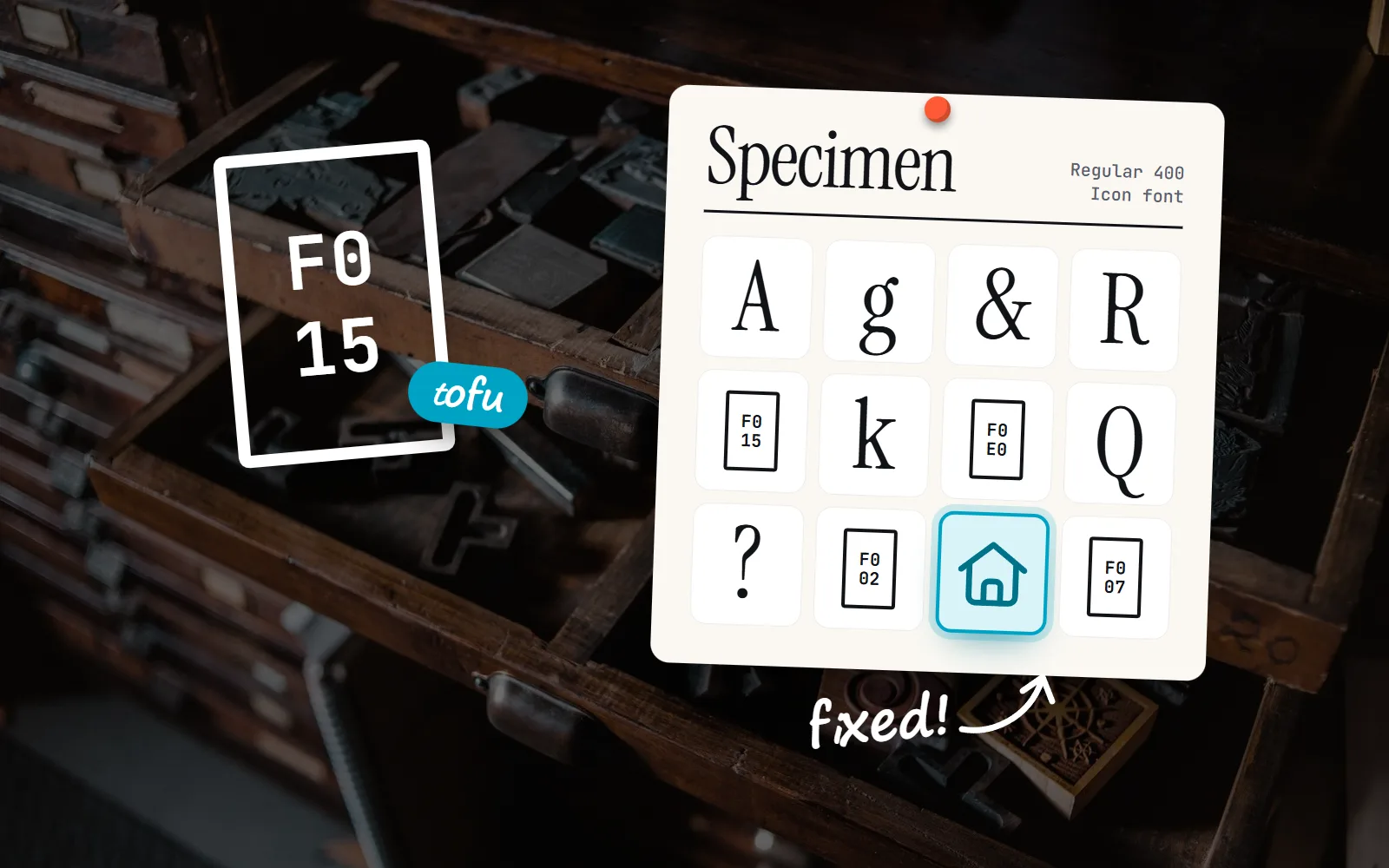
Developers call those boxes “tofu”. Below is a two-minute way to find the cause, the correct 2026 setup for Font Awesome and Material Symbols (both are fine when set up right), and how SVG removes the problem. We checked everything against Font Awesome’s and Google’s own docs in November 2026. For the bigger picture, read our icon fonts vs SVG post.
Why do icon fonts show squares instead of icons?
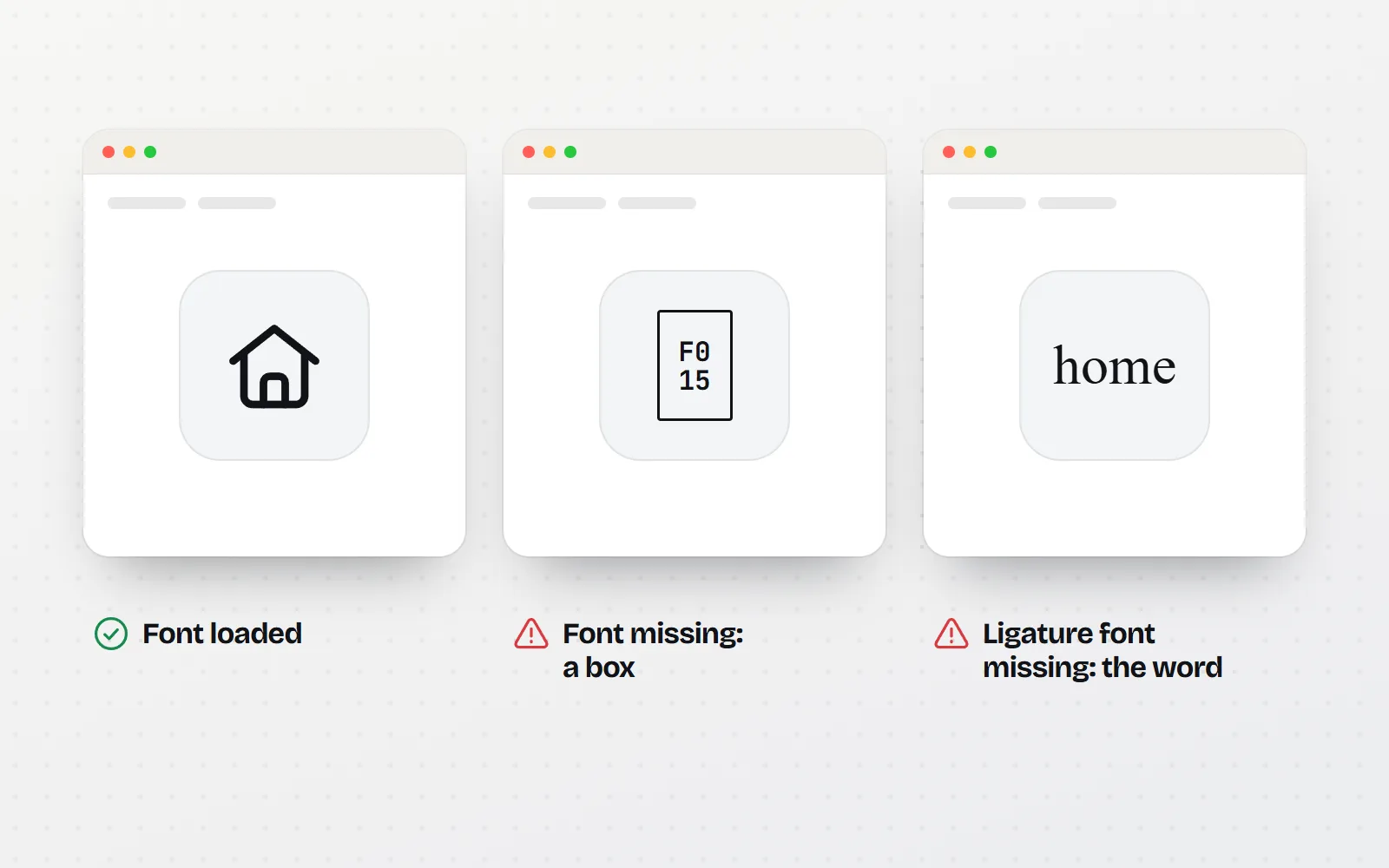
An icon font is a font whose “letters” are little pictures. Font Awesome puts each icon on a special character that normal fonts leave empty. When the icon font is present, the browser draws a house. When it is missing, the browser falls back to an ordinary font, which has no drawing for that character, so it shows an empty box or a box with a code inside.
Material Icons and Material Symbols work slightly differently. You write the icon’s name as plain text, for example home, and the font swaps the whole word for a picture (a trick called a ligature). If that font is missing, nothing swaps, and you see the word itself.
How do I find out why my icons are not showing?
Most cases take two minutes to diagnose in the browser’s developer tools (right-click the page, then Inspect).
- 1Look for the font file
Open the Network tab, filter by Font, and reload. Font Awesome loads files like
fa-solid-900.woff2; Google’s Material fonts load fromfonts.gstatic.com. A red line, a 404 or no request at all is your answer. - 2Read the Console
A message like “Refused to load the font” means your Content Security Policy blocks it. A CORS message means the font comes from another domain that does not allow it.
- 3Inspect one icon
Select a broken icon and check its computed
font-family. If it shows your normal body font, a class name is wrong or another rule overrides the icon font. - 4Try a private window
Extensions are usually off there. If the icons appear, a blocker or a reader setting on your own browser is the cause.
| What you see | Most likely cause | Fix |
|---|---|---|
| Boxes everywhere, the font request is a 404 | Wrong path when self-hosting; the css folder looks for fonts in ../webfonts | Upload both folders and keep them side by side |
| Boxes on the live site only | Content Security Policy without the font’s host in font-src, or a missing CORS header on a font from another domain | Add the host to font-src, or serve the font from your own domain |
| Boxes for some visitors only | Font blockers, company networks that block CDNs, readers who force their own font | Nothing you can fix with a font; use SVG |
| Some icons blank, others fine | Class names from another version, a Pro-only icon or style, or the brands stylesheet not loaded | Match classes to the version you load; check the icon’s edition |
Boxes in your own ::before CSS | Wrong font-family name or weight for your version | Use Font Awesome’s var(--fa-font-solid) shorthand |
| The word “home” shows | Material font not loaded, wrong class, or the name is missing from &icon_names= | Match class to stylesheet; add the name; add &display=block |
Why are my Font Awesome icons not showing?
Font Awesome changed its class names twice, and many broken pages mix them. Here is what each version expects:
| Version | Typical markup | Font family name |
|---|---|---|
| 4 (last release 4.7.0, 2016) | <i class="fa fa-home"> | “FontAwesome” |
| 5 | <i class="fas fa-home"> | “Font Awesome 5 Free” |
| 6 (from February 2022) | <i class="fa-solid fa-house"> | “Font Awesome 6 Free” |
| 7 (from July 2025) | <i class="fa-solid fa-house"> | “Font Awesome 7 Free” |
Version 7 still understands many older short names: we checked the Free 7.3.1 stylesheet, and fa-home and fas still work. What breaks most often:
- Two versions on one page. A theme loads version 5 and a plugin loads version 7. Font Awesome’s troubleshooting page says your site should load just one version, and that it does not recommend using version 7 with older ones, because class names and character codes overlap.
- New classes on an old link. A copied 4.7.0 CDN link plus
fa-solid fa-housefrom today’s docs: the old file has no such classes. - Hand-written CSS with an old font name. Version 7’s all-in-one stylesheet also registers the version 4 and 5 font names for old code, but not “Font Awesome 6 Free”, so custom
::beforerules written for version 6 draw boxes. - Pro icons on the Free files. Font Awesome’s docs say to check that the icon and style exist in the edition you load. Light, thin, duotone and sharp styles need Pro.
- Logos without the brands style. Brand icons need the
fa-brandsclass and the brands stylesheet (included inall.css).
The correct Font Awesome 7 setup
Font Awesome’s get-started guide recommends a Kit: you create one in your account and paste a single script tag. If you would rather host the files yourself, the Free package on npm (@fortawesome/fontawesome-free) ships the css and webfonts folders. Either way, the markup is the same:
<!-- Option 1: a Kit from your Font Awesome account -->
<script src="https://kit.fontawesome.com/YOUR_KIT_CODE.js" crossorigin="anonymous"></script>

<!-- Option 2: self-hosted Free files (keep css/ and webfonts/ side by side) -->
<link rel="stylesheet" href="/fontawesome/css/all.min.css">

<i class="fa-solid fa-house"></i>
<i class="fa-regular fa-bell"></i>

<style>
  /* your own pseudo-element icons: let Font Awesome set the font */
  .home-link::before { font: var(--fa-font-solid); content: "\f015"; }
</style>
Why does Material Icons show the icon name as text?
Because the font that turns the word into a picture is not there, or does not contain that word. Google has two fonts, and they are easy to mix up. Its GitHub README calls Material Icons “the classic set, but no longer updated” (updates stopped in 2022). Material Symbols is the current set, a variable font you can tune for weight and fill.
- Class and stylesheet must match.
class="material-icons"needs the Material Icons stylesheet;class="material-symbols-outlined"needs Material Symbols Outlined. One with the other shows the word. - Newer icons exist only in Symbols. An icon added after 2022 has no picture in the old Material Icons font, so its name stays text.
- Your subset leaves it out. If you load only some icons with
&icon_names=, any name not on that list has no picture in the downloaded font. - The word flashes before the icon. The page shows text while the font downloads. Google’s guide says to add
&display=blockto prevent it.
The correct Material Symbols setup
Google’s Material Symbols guide now recommends listing only the icons you use, sorted alphabetically, and adding display=block. Its own numbers show why: the default font with every icon is 295 KB, every variable axis is 7.9 MB, and three named icons are 1.7 KB.
<link rel="stylesheet"
  href="https://fonts.googleapis.com/css2?family=Material+Symbols+Outlined&icon_names=home,palette,settings&display=block">

<span class="material-symbols-outlined">home</span>
Remember to add each new icon’s name to that list when you use it. Forgetting is the most common cause of a stray word in 2026.
Could a blocker or my security settings be the cause?
Yes, and these are the cases that only some people report. Fonts are separate downloads, so anything that blocks downloads can block icons:
- Blockers. uBlock Origin, a popular content blocker, has a per-site “No remote fonts” switch, and people who turn it on see boxes on icon-font sites.
- Reading fonts. Some readers, often people with dyslexia, tell their browser to use one font for every page. That replaces the icon font too.
- Content Security Policy. If your site sends a CSP header, MDN explains that
font-srclists where fonts may load from. Google’s font files come fromfonts.gstatic.com, so it must be listed (andfonts.googleapis.comunderstyle-srcfor the stylesheet). - Fonts from another domain. MDN notes that web fonts loaded across domains are subject to CORS, so the server holding the font must allow your site.
You can fix the last two. You cannot fix the first two from your side, as long as your icons are a font.
What is the permanent fix for icons showing as squares?
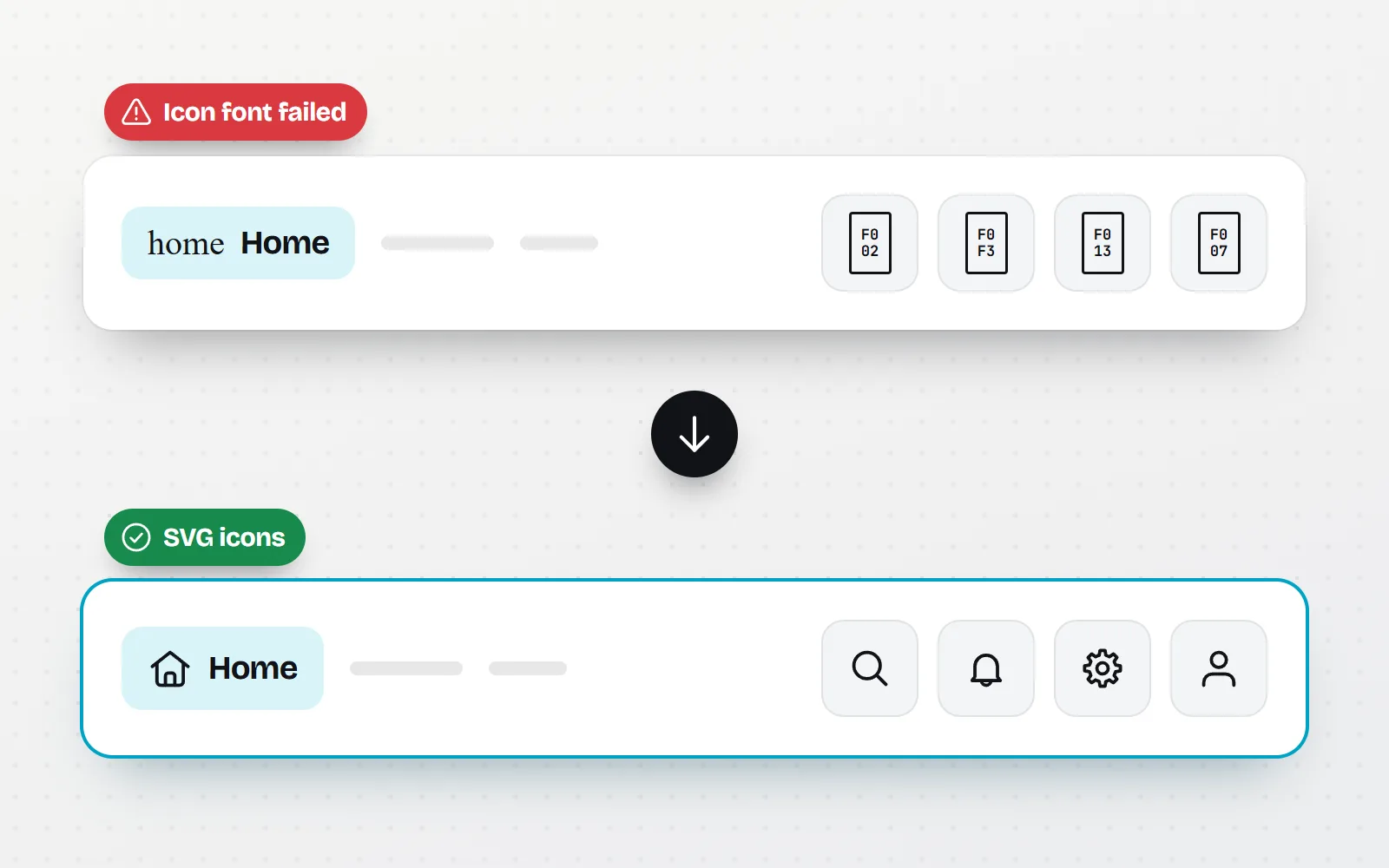
Use SVG icons. An SVG is a small picture made of shapes, so the browser draws it as an image. There is no font to download, nothing for a font blocker or a reading font to replace, and no character to turn into a box or a word.
To be fair to both big names, you do not have to leave them to get there. Font Awesome offers an SVG option alongside its web fonts, and Google’s Material Symbols site lets you download each symbol as an SVG. If you are starting over or want more looks, with icons is SVG-only: all 1000 icons in 34 styles, MIT licensed.
If you like icon-font markup, our Font Awesome-style icon classes keep it without the font. Each class paints a real SVG through a CSS mask (a stencil filled with your text colour), and common Font Awesome names work as aliases, so with-house finds home:
<script src="https://cdn.jsdelivr.net/npm/@withicons/classes@latest/dist/with-loader.js" defer></script>

<i class="with with-home"></i>
<i class="with with-bell with-solid"></i>
Using React, Vue, Svelte or Angular? Use components instead (for example npm i @withicons/react); the HTML guide covers plain pages. Moving a whole site off a font is its own job: our icon font to SVG migration guide goes step by step.
Load one icon source per page, match class names to its version, list every Material Symbol you use, and test with fonts blocked. For new work, use SVG icons.
Paste a 2016 CDN link next to 2026 class names, load two Font Awesome versions, or rely on an icon font for buttons like “Pay” or “Delete” that have no text label.
The bottom line
Squares mean the icon font did not load or apply; words mean a Material ligature font is missing or does not know that name. Check the font request, your CSP and CORS, and that your classes match one version. Font Awesome 7 and Material Symbols both work when set up as their docs say. But fonts can always be blocked, and SVG icons cannot, so if you are tired of debugging boxes, switch to SVG icons. Comparing options? See with icons vs Font Awesome and with icons vs Material Symbols.
Frequently asked questions
Why are my Font Awesome icons showing as squares?
The icon font file did not load or is not being used. Common causes: a wrong path to the webfonts folder when self-hosting, a Content Security Policy without font-src for the font’s host, a missing CORS header on a font served from another domain, two Font Awesome versions on one page, or custom CSS that names the wrong font family (for example “Font Awesome 6 Free” with version 7 files).
Why does Material Icons show the icon name as text?
Material Icons and Material Symbols use ligatures: you type a word like home and the font swaps it for a picture. If the font has not loaded yet, failed, or does not contain that icon, you see the word. Check that the class matches the stylesheet you load (material-icons vs material-symbols-outlined), add &display=block to the Google Fonts URL, and include the name in &icon_names= if you subset.
Why do my icons show as squares only for some visitors?
Some people block web fonts on purpose: blockers such as uBlock Origin have a “No remote fonts” switch, some company networks block font CDNs, and some readers force their own font for easier reading. You cannot fix that from your side with a font. SVG icons are not affected.
Can I mix Font Awesome 5, 6 and 7 on one page?
No. Font Awesome’s troubleshooting docs say your site should load just one version, and that using version 7 with older versions is not recommended because class names and character codes overlap. Pick one version, update your class names to it, and use its v4 shims only if you must keep very old markup.
How do I stop icon fonts from breaking for good?
Switch to SVG icons. You can keep Font Awesome and use its SVG option, download Material Symbols as SVG files, or use a library built on SVG. with icons gives you <i class="with with-home"> class names that paint a real SVG (no font), or React, Vue and other components, for all 1000 icons.
Sources and notes
- Font Awesome docs: Troubleshooting (load one version; v7 with older versions not recommended), checked November 2026
- Font Awesome docs: Get started with a Kit (fa-solid, fa-regular, fa-brands markup), checked November 2026
- Font Awesome docs: CSS pseudo-elements (var(--fa-font-solid)), checked November 2026
- @fortawesome/fontawesome-free on npm (7.3.1, published 15 July 2026), checked November 2026
- Google: Material Symbols guide (icon_names subsetting, display=block, payload sizes), checked November 2026
- google/material-design-icons README (“Material Icons is the classic set, but no longer updated”), checked November 2026
- MDN: Content-Security-Policy font-src
- MDN: Cross-Origin Resource Sharing (web fonts across domains)
- uBlock Origin wiki: per-site switches (“No remote fonts”)
- Stack Overflow: Font Awesome not working, icons showing as squares (2013, the stale accepted answer)
Facts about other icon sets were checked against their official sites in November 2026. Libraries change, so check the links above for the latest numbers.