a plain-English guide
How to convert a PNG to SVG (and avoid fake SVGs)
Converting a PNG to SVG means tracing its pixels into shapes. Some converters skip that and just wrap the PNG in an SVG file. Here is how to do it properly, when it works, and the easier route for icons.
- A real conversion traces the picture: software follows the edges of the pixels and redraws them as shapes. That is what makes an SVG sharp at any size.
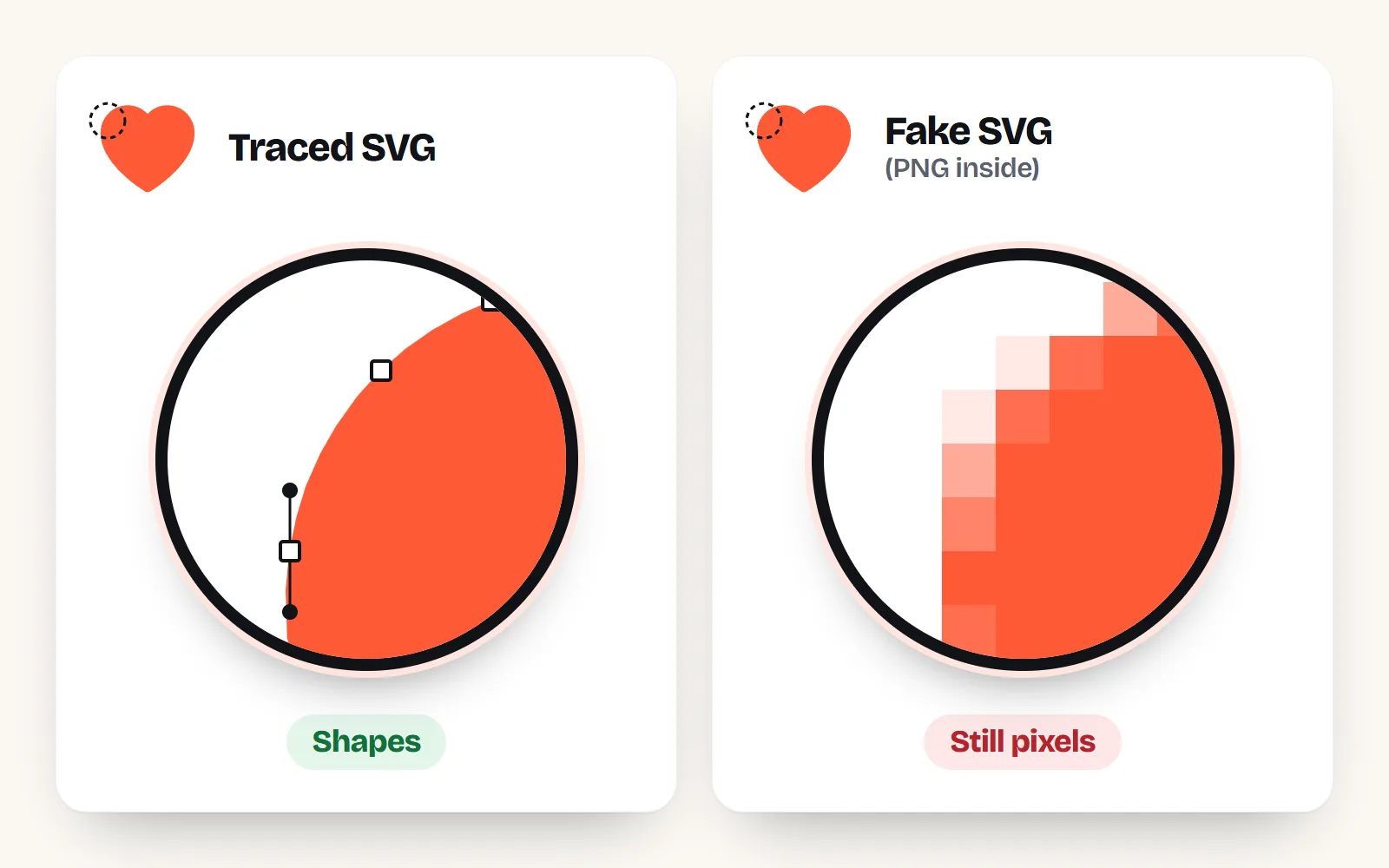
- Watch for fake SVGs. Some converters put your PNG inside an SVG file unchanged. Open the file in a text editor: if you see
<imageand a long block of letters, it is still pixels. - Free and reliable: Inkscape’s Path > Trace Bitmap. Paid: Illustrator’s Image Trace. Online tracers vary, so always check the result.
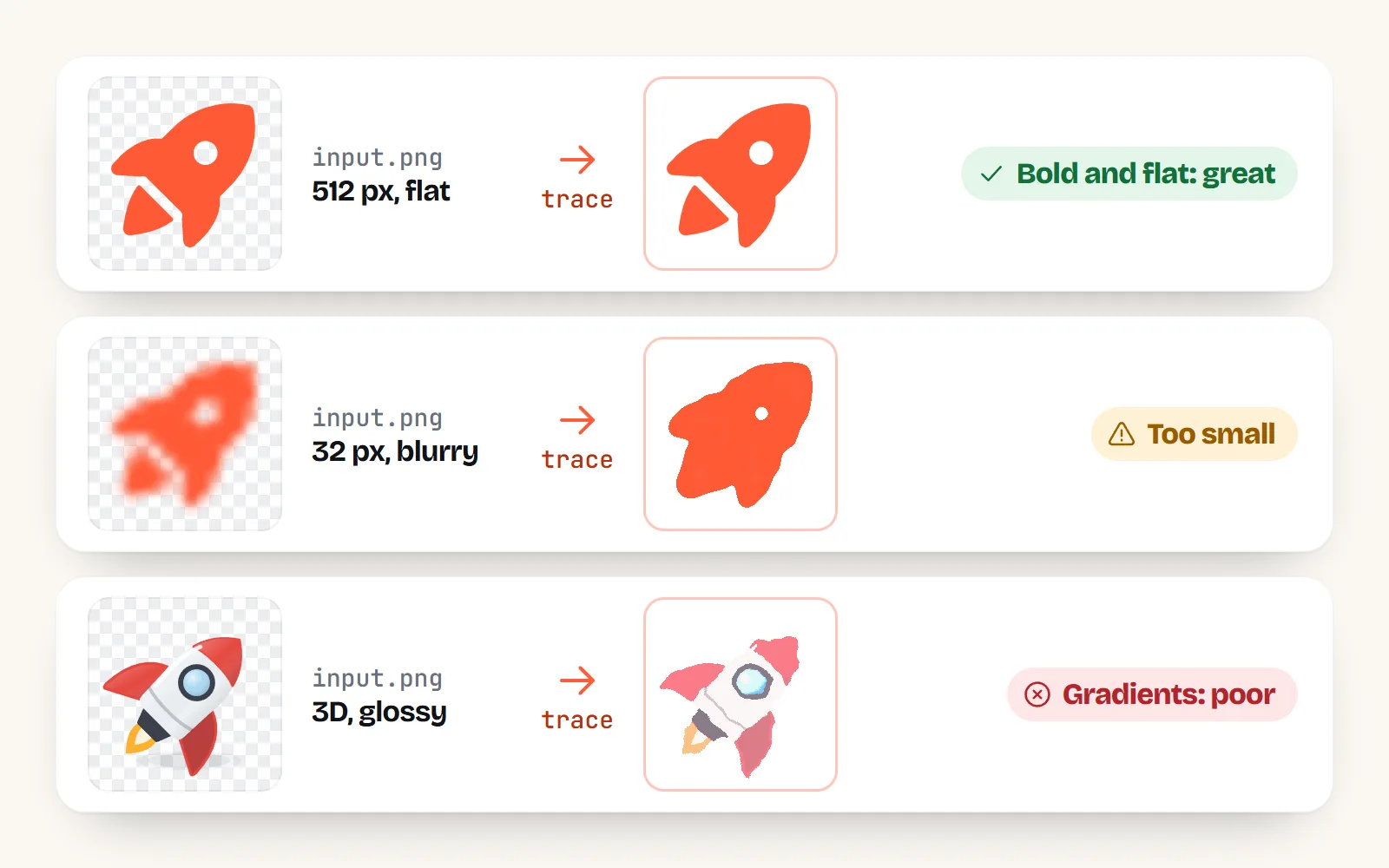
- Tracing works for bold, flat, high-contrast images with few colours. It struggles with small, blurry, detailed or gradient-heavy PNGs.
- For icons, skip conversion: download the original SVG. Every with icons icon comes as a real SVG, 34,000 of them, free under MIT.
On this page 9 sections
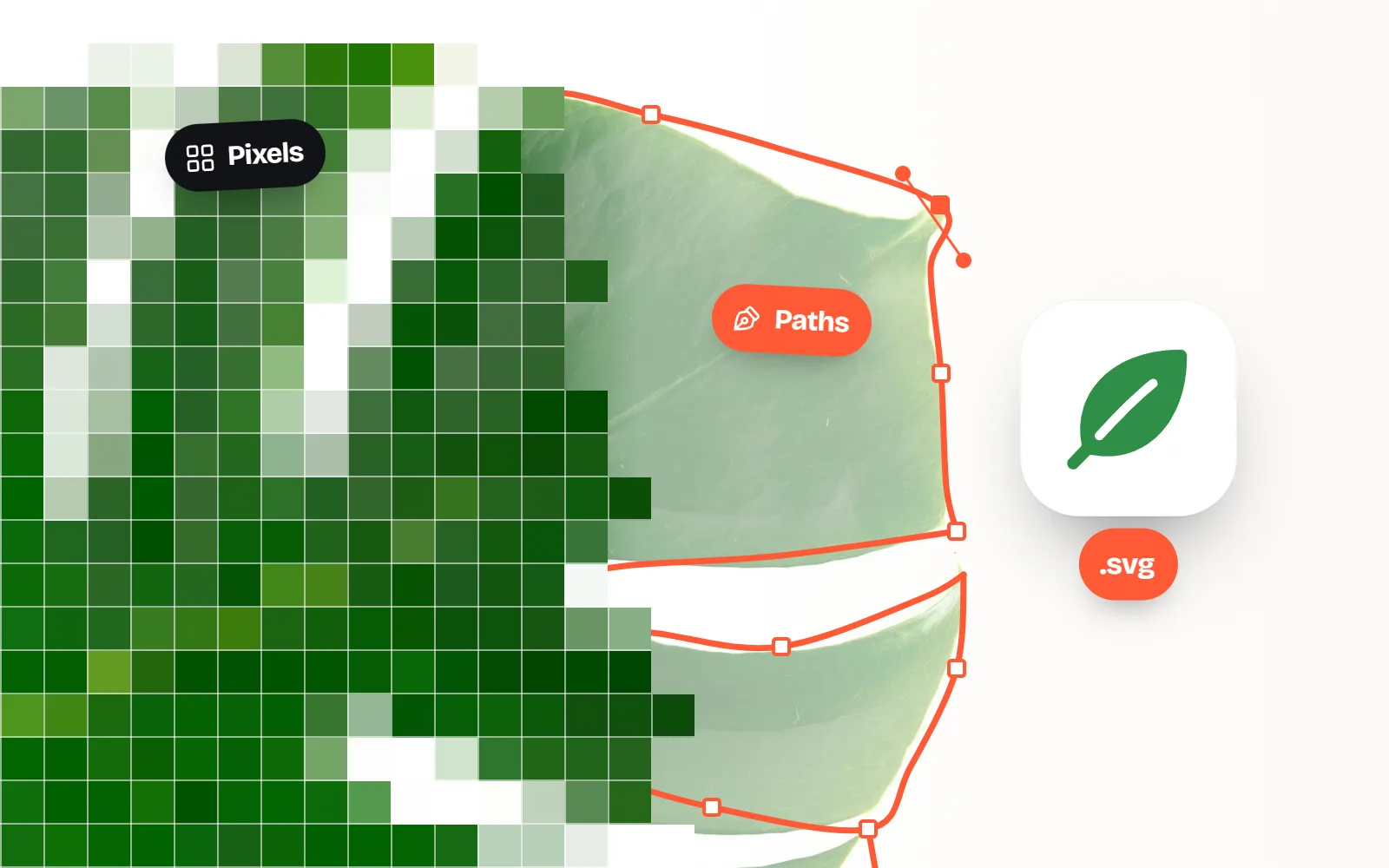
To convert a PNG to SVG, you trace it: software follows the edges in the pixels and redraws them as shapes, which is what lets an SVG stay sharp at any size. Free Inkscape (Path > Trace Bitmap) and Adobe Illustrator (Image Trace) do this well for bold, flat images. Many online converters do too, but some only wrap your PNG inside an SVG file, which changes the file name and nothing else. For icons, the simplest route is to skip conversion and download the original SVG.
This guide explains the difference between a real and a fake conversion, how to check yours in ten seconds, how to trace properly with free and paid tools, and when tracing is simply the wrong job.
What does converting a PNG to SVG actually do?
A PNG is a grid of coloured squares (pixels). Stretch it and the squares get bigger, so it turns blurry. An SVG is a list of shapes, a bit like a recipe: “a circle here, a curved line there, filled with this colour”. The computer redraws the shapes at whatever size you ask for, so they never go blurry.
So you cannot really “convert” one into the other, the way you convert a Word file to PDF. There are only two things a converter can do:
| Method | What happens | Sharp when enlarged? | Editable shapes? |
|---|---|---|---|
| Tracing (vectorising) | Software finds edges and colour areas, then draws new shapes over them | Yes | Yes |
| Wrapping (embedding) | The PNG is placed inside an SVG file, unchanged | No, still pixels | No |
| Redrawing by hand | A person rebuilds the shape with a pen tool | Yes | Yes, and cleanest |
Wrapping is not a trick in itself: SVG has an <image> element for placing pictures, and designers use it on purpose. It only becomes a trap when a “PNG to SVG converter” does just that and calls it a conversion.
How do I tell if an SVG is fake?
You do not need design software. Three quick checks, from easiest to surest:
- 1Zoom right in
Open the SVG in a browser (drag it onto a tab) and zoom to 400% or more. Real shapes stay smooth. Blocky, soft edges mean pixels.
- 2Look at the file size
A simple traced icon is usually a few kilobytes. If the SVG is about as big as the PNG, or bigger, it probably contains the PNG.
- 3Open it in a text editor
Right-click and open it with Notepad or TextEdit. Real shapes look like path data. A fake one has an
<imagetag followed by a very long block of letters and numbers.
Here is roughly what each looks like inside. A traced shape:
<svg viewBox="0 0 24 24"><path d="M12 21C7 17 3 13.5 3 9a4.5 4.5 0 0 1 9-1 4.5 4.5 0 0 1 9 1c0 4.5-4 8-9 12Z"/></svg>A wrapped PNG (the long part is the picture itself, written out as text):
<svg viewBox="0 0 512 512"><image href="data:image/png;base64,iVBORw0KGgoAAAANSUhEUgAA..." width="512" height="512"/></svg>How do I convert a PNG to SVG for free with Inkscape?
Inkscape is a free, open-source design app for Windows, Mac and Linux, and its Trace Bitmap tool is the most dependable free tracer. Its own beginners’ guide is honest about it: tracing is ideal for dark shapes on a bright background, and if you expect a perfect copy you will be disappointed.
- 1Import the PNG
File > Import, and choose the largest, sharpest version you have.
- 2Open Trace Bitmap
Select the picture, then Path > Trace Bitmap (Shift + Alt + B).
- 3Pick a mode
Brightness cutoff for a one-colour icon or logo. Multiple scans: colours for a few flat colours (it makes one shape per colour). Centerline for line drawings and handwriting.
- 4Preview and apply
Click Update to preview, adjust, then Apply. The traced shapes appear exactly on top of the picture.
- 5Remove the original and save
Drag the result aside, delete the PNG underneath, then File > Save As and choose Plain SVG.
How do I convert a PNG to SVG in Illustrator?
Adobe Illustrator (paid) has Image Trace, with presets for black-and-white logos, a few colours, outlines and photos. Adobe’s steps today:
- File > Place the PNG, then open Window > Image Trace.
- Pick a preset. Adobe now offers Enhanced presets (with support for gradients, shapes and transparency) and the older Legacy ones. For icons, Black and White or a low colour count is usually cleanest.
- Adjust Paths, Corners and Noise in the Advanced section, then click Expand to turn the trace into editable paths before you export as SVG.
Adobe’s best-practice page gives two tips that apply to every tracer: clean the image first (remove backgrounds, dust and scan marks), and use lossless files like PNG rather than heavily compressed JPGs, because compression blotches get traced too.
Do online PNG to SVG converters work?
Some do. The problem is you cannot tell which kind you got until you check. A few you will meet:
| Tool | Price | What to know |
|---|---|---|
| Adobe Express PNG to SVG | Free | Upload a PNG or JPG up to 40 MB; Adobe says it turns it into a vector file. Check the result as above. |
| Vectorizer.AI | Free preview, $9.99 a month to download | Traces with AI; you can inspect the result before paying. |
| Inkscape (desktop) | Free | Most control, works offline, nothing uploaded. |
| Illustrator Image Trace (desktop) | Subscription | Strong presets and cleanup; part of Creative Cloud. |
Independent tests find uneven results. One October 2026 test of six free converters from the first page of Google found that all six returned real vectors (no wrapped PNGs), but three of them changed colours or dropped whole shapes on their default settings, and even the best used about five times as many points as a hand-drawn version. So a real SVG is not automatically a good one. Whatever you use, zoom in, check the file size, and peek inside once before you rely on it.
Upload the biggest, cleanest PNG you have, keep it to a few flat colours, and check the SVG by zooming and opening it in a text editor.
Trust a converter because the file ends in .svg. Or feed it a tiny 64 px PNG: there is nothing for the tracer to follow, so you get lumps.
When does tracing work, and when does it fail?
Tracing is guessing. It works when the guesses are easy:
| Your PNG | Tracing result | Better option |
|---|---|---|
| Bold one-colour icon or logo, large and sharp | Usually very good | Trace it |
| Flat artwork with 2 to 5 solid colours | Good, with some cleanup | Trace with limited colours |
| Small (under about 128 px) or blurry | Lumpy, rounded corners | Find a bigger original, or redraw |
| Thin lines and fine text | Lines wobble, text breaks | Centerline mode, or retype the text |
| Gradients, shadows, 3D or glossy looks | Dozens of blotchy shapes | Keep it as PNG, or find the original SVG |
| Photos | Posterised effect at best | Keep it as PNG or WebP |
Is there an easier way to get an icon as SVG?
Yes: find the icon as an SVG in the first place. Nearly every modern icon set is drawn as vectors and offers SVG downloads, so if you have a PNG icon, the SVG version usually exists already. Tracing it gives you a worse copy of something you could have had for free, and it does not change the licence: a traced copy of someone else’s icon still follows their rules.
Every one of our 1000 icons is drawn once on a 24 x 24 grid and comes as a real SVG in 34 styles. On any icon page, Download gives you two kinds: SVG with the colours locked in (best for design tools) and themable SVG you can recolour with code. Our free SVG icons page is a good place to start, and where to get free SVG icons compares other libraries honestly.
And because they are real vectors, they stay crisp at every size, from a tiny button to a poster:
Making stickers or cut files? Pick a filled style like Solid style or Sticker style, since outline styles are drawn with strokes that some cutting software reads as thin lines. For logos you drew yourself, tracing (or a few hours of careful redrawing) is still the right tool. Our SVG vs PNG guide explains when each format is the better choice.
The short answer
Converting a PNG to SVG means tracing it into shapes. Use Inkscape’s Trace Bitmap (free) or Illustrator’s Image Trace for bold, flat images, start from the biggest, sharpest file, and always check the result: an SVG with an <image tag inside is still a PNG in disguise. For anything detailed, glossy or tiny, find the original vector instead. For icons, that is the fastest route by far: browse all 1000 icons and download the SVG directly. If your PNG has a stubborn white box, here is how to remove it.
Frequently asked questions
Can you convert a PNG to SVG for free?
Yes. Inkscape is free for Windows, Mac and Linux: import the PNG, choose Path > Trace Bitmap, preview, apply, then save as SVG. Adobe Express also has a free online PNG to SVG converter. Whatever you use, open the result and check it really contains shapes, not the original picture.
Why does my converted SVG look exactly like the blurry PNG?
Because it probably is the PNG. Some converters embed the picture inside an SVG file instead of tracing it. The file ends in .svg, but zooming in still shows pixels. Open it in a text editor: an <image> tag with a long base64 block means it was wrapped, not converted.
Why does my traced SVG look lumpy or have the wrong colours?
Tracing guesses where edges are. Small or blurry PNGs give it too little to go on, and gradients, shadows or many colours become dozens of blotchy shapes. Start from the largest, sharpest PNG you have, limit the number of colours, and smooth the result, or redraw the shape by hand.
Is SVG better than PNG for Cricut and other cutting machines?
Cutting machines need real outlines to follow, so a traced or original SVG is what you want. A wrapped “fake SVG” gives the machine no cut lines. For icons, download the SVG directly and choose a filled style, which gives clean shapes to cut.
Does converting an icon to SVG change its licence?
No. Tracing someone else’s icon makes a copy of their work, so the original licence still applies, credit lines and limits included. If you want an icon you can freely use as SVG, start from an openly licensed set such as with icons (MIT).
Sources and notes
- Inkscape Beginners’ Guide: Tracing an image (Path > Trace Bitmap), checked Nov 2026
- Adobe Help: Vectorize images using Image Trace (updated 26 Feb 2026)
- Adobe Help: Image Trace best practices and limitations (updated 25 Oct 2026)
- Adobe Help: Image tracing presets (Expand to edit paths), checked Nov 2026
- Adobe Express: Free online PNG to SVG converter, checked Nov 2026
- Vectorizer.AI pricing (free preview, paid download), checked Nov 2026
- MDN: the SVG <image> element (embeds raster images), checked Nov 2026
- ViaVector: best SVG converter test (18 Oct 2026)
- with icons license (MIT)
Facts about other icon sets were checked against their official sites in November 2026. Libraries change, so check the links above for the latest numbers.