a plain-English guide
Why does my transparent icon get a black or white background?
You paste a see-through icon and it lands in a black or white box. Here is what causes it in 2026, how to remove a white background with the apps you already have, and the clean way to avoid it.
- Black box after pasting? The clipboard handed the app an old-style bitmap that has no transparency, so the clear parts arrive as black (or white). Save the file and insert it instead.
- White box after saving? The image was turned into a JPG somewhere. JPG has no transparency at all, so see-through pixels become white.
- Grey-and-white squares in your slide? The checkerboard is painted into the picture. It was never transparent: get the image from another source.
- To remove a white background today: Remove Background or Set Transparent Color in PowerPoint and Word, Remove background in Windows Paint or Photos, the Remove Background button or Instant Alpha in Preview on a Mac. Paint 3D was removed from the Microsoft Store on 4 November 2024.
- The clean way: download the icon as a transparent PNG or an SVG. Every with icons PNG is see-through unless you pick a background, across 34,000 SVGs.

On this page 9 sections
A transparent icon gets a black or white background for one of four reasons: it was pasted through a clipboard format that drops transparency (often black), it was saved as a JPG, which cannot be transparent (white), the “transparent” checkerboard was painted into the picture, or the app put a white box behind it. The fix that always works is to download a real transparent PNG or SVG and insert the file, rather than pasting.
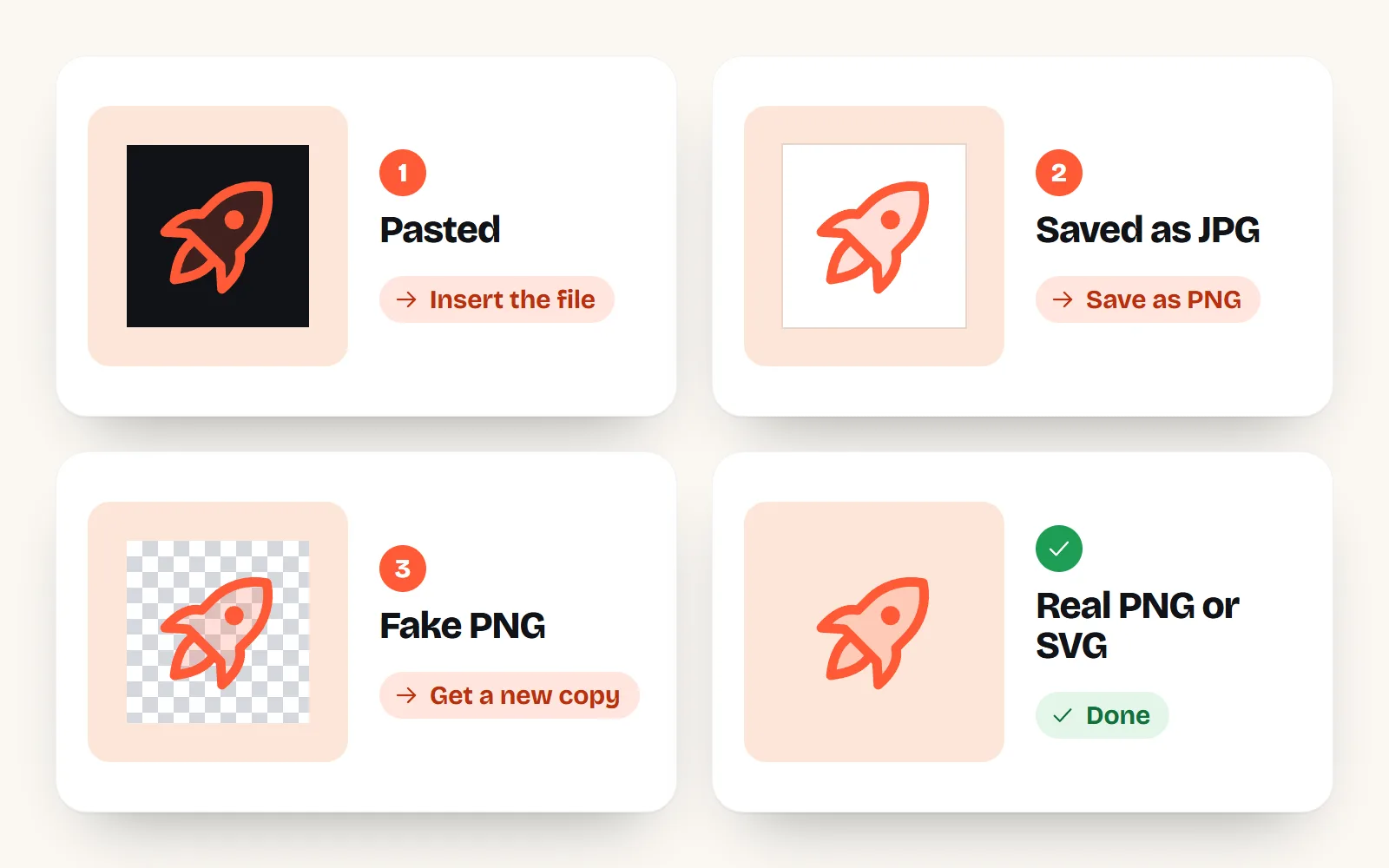
Why does my transparent icon turn black or white?
A transparent image stores one extra number for every pixel: how see-through it is. Designers call this the alpha channel. PNG keeps it. Lose it anywhere on the way to your slide, and the app has to guess a colour for the empty pixels: usually black or white.
| What you see | Most likely cause | Quick fix |
|---|---|---|
| A black box after pasting | The app read an old clipboard bitmap with no transparency | Save the image, then Insert > Pictures |
| A white box after saving or converting | The file became a JPG | Download or save it as PNG |
| Grey and white squares on your slide | A “fake PNG”: the checkerboard is part of the picture | Get the icon from a better source |
| A white box only on a dark slide | The icon really has a white background | Remove it (see below) or re-download |
| The icon seems to vanish on a dark slide | Not a box at all: a dark icon on a dark background | Pick a light colour before downloading |
That last row catches lots of people. If your icon is black and your slide is dark, the transparency is working perfectly; you just cannot see the icon. Our post on icons in dark mode covers picking colours that work on both.
Why does pasting an image give it a black background?
When you copy a picture, the computer puts it on the clipboard in several formats at once, so each app can pick the one it understands. Windows’ oldest picture format there is a plain bitmap, and it does not carry transparency reliably. An app that takes that copy fills the clear pixels with black, or sometimes white.
This is why the old answers disagree. A famous 2011 Super User answer says simply that copy and paste does not keep transparency. That is only partly true today. Browsers can also put a real PNG on the clipboard (the web’s clipboard standard requires browsers to support PNG), and a 2026 test reported that current Word and PowerPoint kept transparency when they received that PNG copy from Chrome. Copy the same image from a PDF reader or an older app that only offers the bitmap, and the black comes back.
Copy buttons on icon sites, ours included, put a PNG on the clipboard. Whether the app you paste into reads the PNG or the bitmap is up to that app, so the result can still vary. When it matters, use the file.
- 1Save the image instead of copying it
Right-click and choose Save image as, or use the site’s download button. On any with icons page, Download gives you a PNG at the size and colour you choose.
- 2Insert the file
In PowerPoint, Word or Keynote, use Insert > Pictures (or drag the file in). In Google Slides, Docs, Canva or Notion, use the upload button.
- 3Check it on a coloured background
Put a coloured shape behind the icon. If the colour shows through around the icon, it is truly transparent.
Why does my PNG have a white background after I save it?
Because it is not a PNG any more. JPG (also written JPEG) is great for photos, but it has no alpha channel at all, so every see-through pixel has to become a solid colour, almost always white. It happens quietly: a “Save as JPG” default, an upload form that only takes JPG, or an online compressor.
Check the file name ending (.png or .jpg) and the file type in your computer’s file info. If you need transparency, keep it PNG, WebP or SVG. Our which file should I use? guide explains the formats in one page, and SVG vs PNG icons goes deeper.
Why do I see a grey and white checkerboard in my image?
In editing apps, a grey-and-white checkerboard is the standard way to show transparency: it is drawn on screen behind the picture, not saved in it. Some download sites go one step further and save the checkerboard into the picture itself, so the preview looks transparent but the file is not. People call these “fake PNGs”.
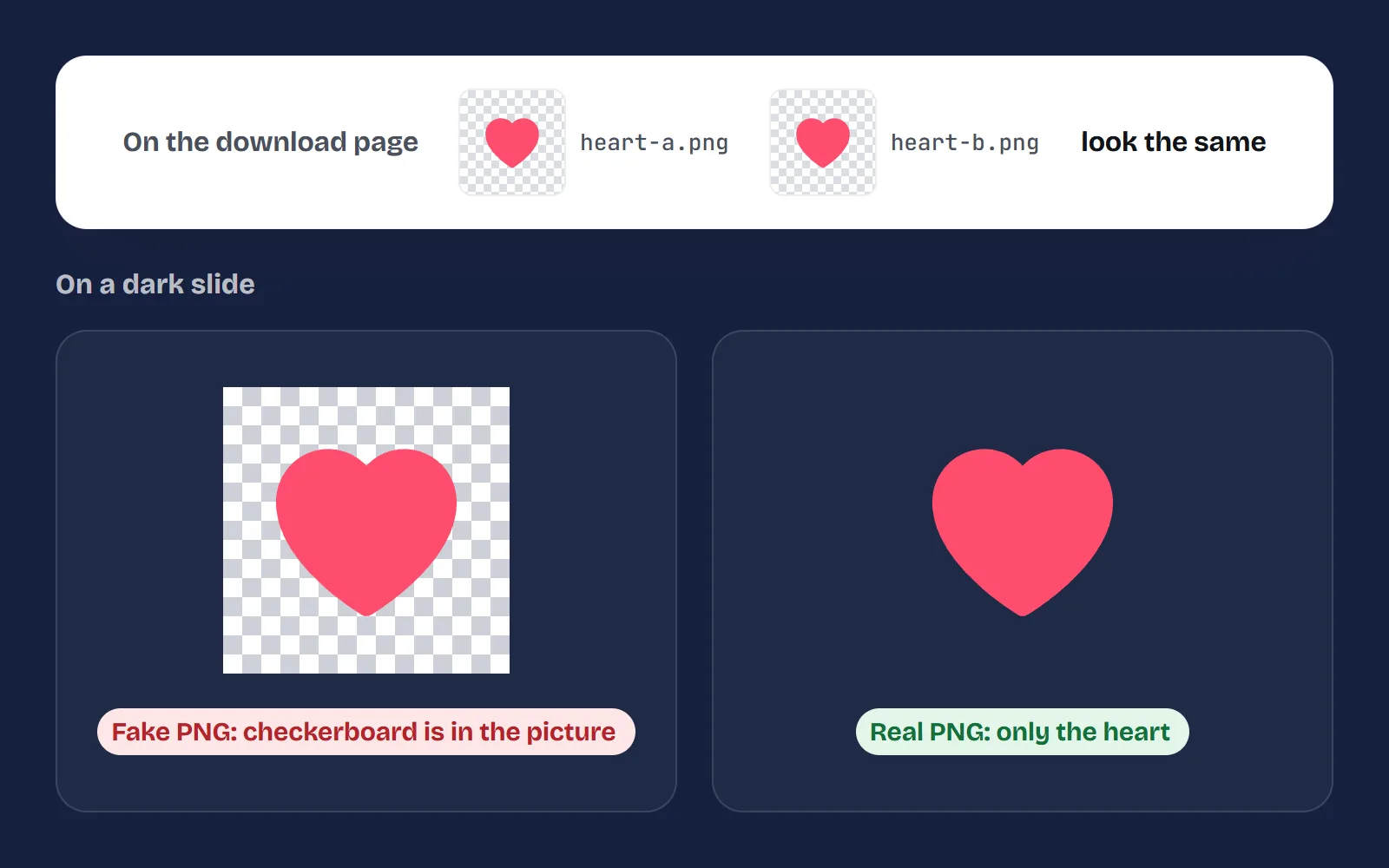
The quick test: put the image on a dark coloured shape. A real transparent PNG shows only the icon. A fake one brings its checkerboard (or a white square) along. If it is fake, there is nothing hidden to recover: remove the background as below, or better, get the icon from a source that gives you a proper file.
How do I remove a white background from an icon in 2026?
Every major app now has a one-click remover, and some of the tools in older guides are gone. Here is where each lives today:
| App | Tool and where it is | Cost | Good to know |
|---|---|---|---|
| PowerPoint, Word, Excel, Outlook (Windows and Mac) | Select picture > Picture Format > Remove Background | Included | Grey for SVG and other vector pictures |
| PowerPoint, Word (desktop) | Picture Format > Color > Set Transparent Color | Included | One colour only; not in Word for the web |
| Windows Paint | Remove background button in the toolbar, then save as PNG | Free | Has layers and real transparency since 2023 |
| Windows Photos | Edit the image, then the background tool: Remove | Free | Can save the result or copy it |
| Preview (Mac) | Remove Background button, or Markup > Instant Alpha | Free | Asks to convert the file to PNG |
| Photos and Safari (iPhone, iPad) | Touch and hold the subject > Copy Subject | Free | Made for photos; fine for bold icons |
| Canva | Select image > BG Remover | Paid plans | Not on Canva Free |
| Paint 3D | Magic Select | Gone | Removed from the Store on 4 Nov 2024 |
A few tips that save time:
- Save as PNG afterwards. In Paint, Preview and Photos, the result is only transparent if you save it as PNG. Save as JPG and the white comes straight back.
- Office keeps the original. Remove Background in PowerPoint and Word is reversible. Right-click the picture and choose Save as Picture to get a separate PNG file.
- Check the edges. Automatic removers are tuned for photos. On a small flat icon they can leave a pale halo, so zoom in first.
Why did Set Transparent Color delete parts of my icon?
Set Transparent Color in PowerPoint and Word picks one colour and makes it see-through everywhere in the picture, not just around the edge. Microsoft’s own help says it works best with simple, solid-colour pictures and cannot make more than one colour transparent. Fine for a black icon on a white square; but white parts inside the icon (a tick in a circle, a cute character’s eyes, a glossy shine) disappear too.
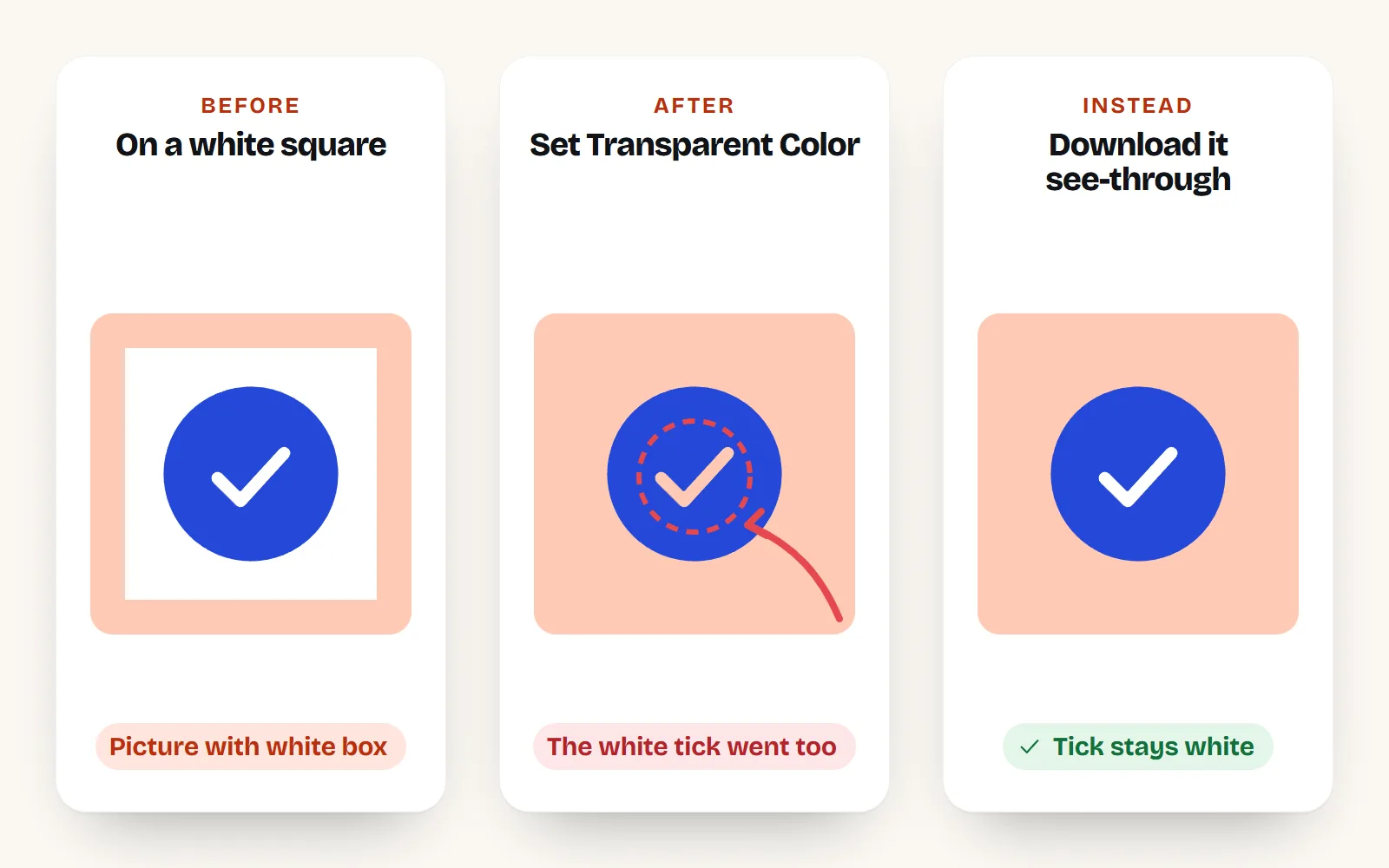
Use Set Transparent Color for a one-colour icon on a flat white square, or use Remove Background, which looks at shapes instead of colours.
Use Set Transparent Color on an icon with white details inside it, or on a JPG, whose “white” is really dozens of slightly different whites. You get holes and a speckled edge.
What is the clean way to get an icon with no background?
Skip the cleanup and start from a file that was made transparent: a PNG with a real alpha channel, or an SVG, which is drawn from shapes and has no background unless someone adds one.
- 1Find the icon
Search the icon library in everyday words. “Bin” finds trash, “gear” finds settings.
- 2Pick a colour and size
Choose a colour that stands out on your slide or design. For slides, 512 px is plenty; pick 1024 px for a poster.
- 3Download PNG or SVG
In the download options, Background is set to See-through unless you choose White, Page colour or Custom. The preview’s light or dark backdrop is only a preview, not part of the file.
- 4Insert the file
Insert or upload it rather than pasting. Our PowerPoint and Word and Google Docs guides walk through it with pictures.
SVG is the best choice where your app accepts it (PowerPoint, Word, Keynote, Canva, Figma), because it stays sharp at any size and has nothing behind it to remove. Use PNG for Google Slides, Google Docs, Notion and email. If you need a big pile of them, our free PNG icons page collects the most popular ones.
And because a transparent icon has no box, it sits naturally on any background, light, dark or photo, in any of our 34 styles, from Solid style to glossy and hand-drawn:
The short answer
A black box usually means a paste through a clipboard format without transparency, so insert the file instead. A white box usually means a JPG, so keep it PNG. A checkerboard you can see is part of the picture, so get a better copy. To remove a white background, use Remove Background in Office, Paint or Photos on Windows, or Preview on a Mac (Paint 3D is gone). And to never deal with it again, download icons as transparent PNG or SVG from the start: all 1000 with icons are free, MIT licensed and see-through by default. Working in Canva? Read Can you download a transparent PNG from Canva for free? next.
Frequently asked questions
Why does my PNG turn black when I paste it?
Copying an image puts it on the clipboard in several formats. The oldest Windows bitmap format does not carry transparency reliably, so an app that reads that copy fills the clear pixels with black. Save the PNG as a file and use Insert > Pictures (or the app’s upload button): a saved file keeps its transparency.
Why does my transparent image have a white background after I download it?
Most often it was saved or converted as a JPG, which cannot store transparency, so the clear parts become white. It can also be a “fake PNG” whose checkerboard or white is part of the picture. Check the file type and open it on a dark background to see what is really there.
How do I remove a white background from an icon for free?
On Windows, open it in Paint, click Remove background and save as PNG. On a Mac, open it in Preview and click the Remove Background button, or use Instant Alpha in the Markup toolbar. In PowerPoint or Word, use Picture Format > Remove Background, or Color > Set Transparent Color for a flat white.
Can I still use Paint 3D to remove a background?
Not if you do not already have it. Microsoft deprecated Paint 3D in August 2024 and removed it from the Microsoft Store on 4 November 2024. Existing installs still run, but Microsoft points people to Paint and Photos, which both have one-click background removal.
Why did Set Transparent Color remove parts of my icon?
It makes one colour see-through everywhere in the picture, not just around the edges. If your icon has white details inside it, those vanish too. Use Remove Background instead, or download a properly transparent icon.
Why does a transparent PNG look like it has a box in Google Slides or Docs?
Usually the image already has a solid or checkerboard background baked in. Google Slides and Docs keep real PNG transparency when you insert the file, so try inserting a downloaded PNG rather than pasting, and check that the source image is truly transparent.
Sources and notes
- Microsoft Learn: Resources for deprecated features (Paint 3D removed from the Store on 4 Nov 2024), checked Nov 2026
- Windows Insider Blog: Background removal in Paint (7 Sep 2023)
- Windows Insider Blog: Paint layers and transparency, PNG support (18 Sep 2023)
- Windows Insider Blog: Photos background remove and replace (17 Nov 2023)
- Microsoft Support: Remove the background of a picture (Office), checked Nov 2026
- Microsoft Support: Make a picture transparent in Word (Set Transparent Color), checked Nov 2026
- Apple Support: Remove a background or extract an image in Preview on Mac, checked Nov 2026
- Apple Support: Mark up files on Mac (Instant Alpha), checked Nov 2026
- Apple Support: Lift a subject from the photo background on iPhone, checked Nov 2026
- Canva Help: Remove photo and video backgrounds (paid plans), checked Nov 2026
- MDN: Image file type and format guide (JPEG has no alpha channel), checked Nov 2026
- MDN: ClipboardItem.supports() (image/png is always supported), checked Nov 2026
- Super User: Copying PNG with transparency shows a black background (2011)
- PC Glance: Transparent image pastes black, a clipboard test (14 Oct 2026)
Facts about other icon sets were checked against their official sites in November 2026. Libraries change, so check the links above for the latest numbers.