a plain-English guide
Can you put SVG icons in Google Slides?
Short answer: not as an SVG file, still. Here is what Google accepts today, why the famous WMF trick gives you wobbly icons, and the quick way to get icons that stay sharp and on-brand.
- No, Google Slides still does not accept SVG files (checked November 2026). Google’s own documentation lists PNG, JPEG and GIF, under 50 MB and 25 megapixels.
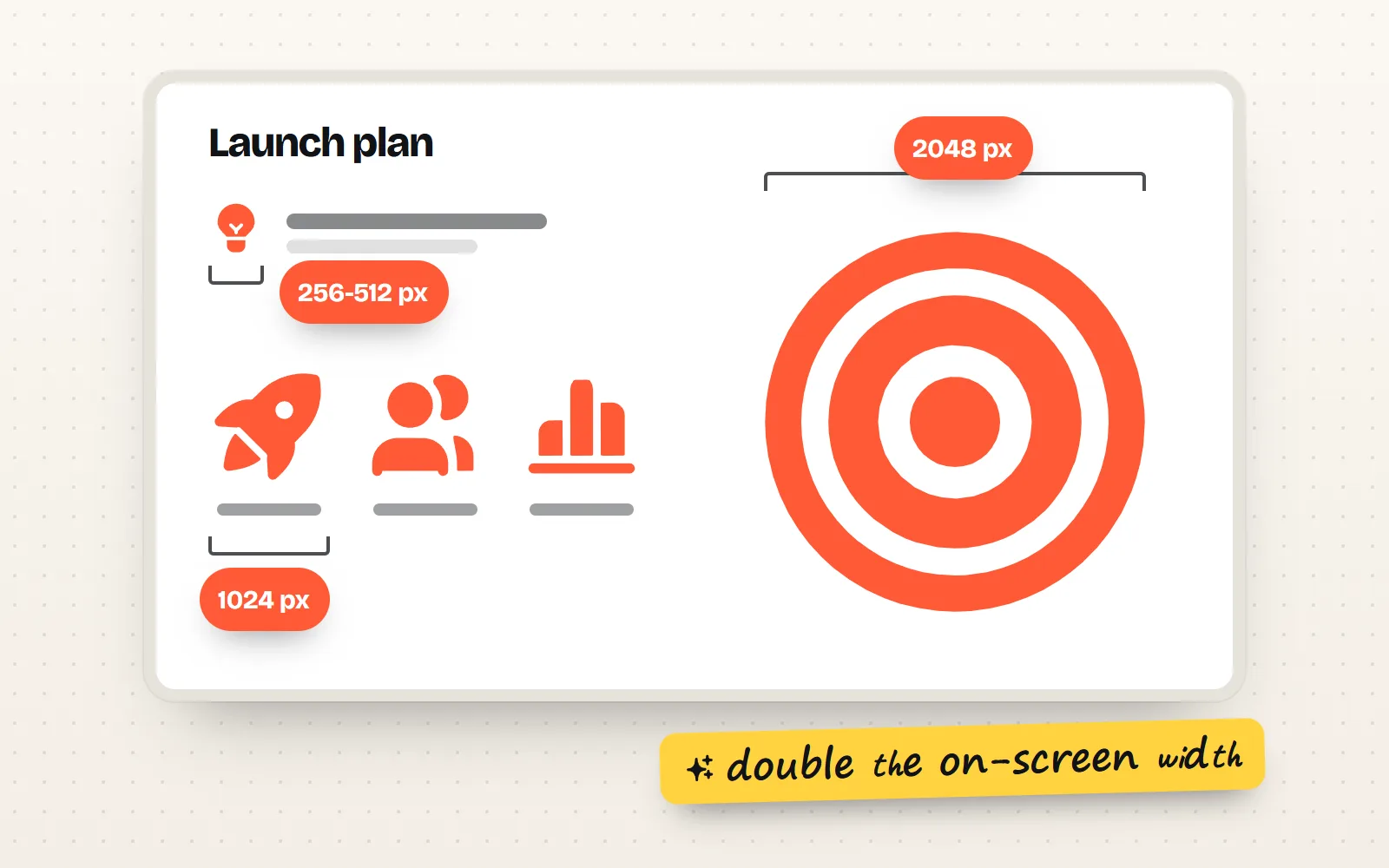
- The best route today is a big transparent PNG, about twice the size the icon will show on screen, downloaded in the exact colour you want.
- Skip the old WMF trick. WMF has no smooth curves, so circles and rounded corners turn into short straight lines. It also needs a third-party converter.
- Need a shape you can recolour inside Slides? Insert the SVG in desktop PowerPoint, use Convert to Shape, save, then import the .pptx into Slides. Test one icon first.
- with icons gives you PNG at any size and colour, plus Copy image, for all 1000 icons in 34 styles. No conversion needed.

On this page 9 sections
No, you still cannot insert an SVG file into Google Slides. As of November 2026, Google’s own documentation says Slides images must be PNG, JPEG or GIF, under 50 MB and no larger than 25 megapixels. The way to get icons that look sharp is a large transparent PNG, about twice the size it will appear on screen, downloaded in the exact colour you want.
That sounds like a step backwards if you are used to PowerPoint or Canva, where SVG works. But it is less of a problem than it looks. An SVG is a picture made of shapes, so it stays sharp at any size. A big enough PNG looks just as sharp on a projector, and with icons makes one for you in seconds, in any colour. This post covers the why and the trade-offs. For the plain click-by-click steps, our Google Slides guide takes two minutes.
Can you insert an SVG into Google Slides?
Not as a file. Try Insert › Image › Upload from computer with an .svg and Slides refuses it (people usually report the message “Unsupported image type”). Dragging the file in, pasting SVG code or picking it from Drive all end the same way. Google Drive will happily store an SVG, which confuses a lot of people, but Slides will not place it on a slide.
| What you try | Works in Google Slides? | What you get |
|---|---|---|
| Upload an .svg file | No | Refused by the upload |
| Paste SVG code | No | Nothing useful, or the code as text |
| Upload a PNG | Yes | A picture with a see-through background |
| Copy image, then paste | Yes, usually | A PNG from the clipboard, ready to resize |
| Import a .pptx with SVG icons | Partly | Usually flat pictures; converted shapes stay editable |
| Convert to WMF, open in Drawings | Partly | A shape, often with jagged curves |
Why does the old WMF trick make jagged icons?
The classic workaround goes: convert the SVG to WMF (an old Windows drawing format) with a free converter, open the WMF in Google Drawings, then copy the drawing into Slides. It does give you a shape. The trouble is what happens to the curves on the way.
Icons are full of smooth curves: circles, rounded corners, the swoop of a heart. SVG stores these as Bézier curves, a compact recipe for a perfect curve. WMF dates from the early days of Windows, and its list of drawing records has straight lines, polygons, rectangles, ellipses and arcs, but no Bézier curve at all (you can check Microsoft’s own WMF specification in the sources). So a converter has to fake each curve with a chain of short straight lines. Zoom in and the circle on your icon is a polygon. Thin outline icons suffer most, because every little corner shows.
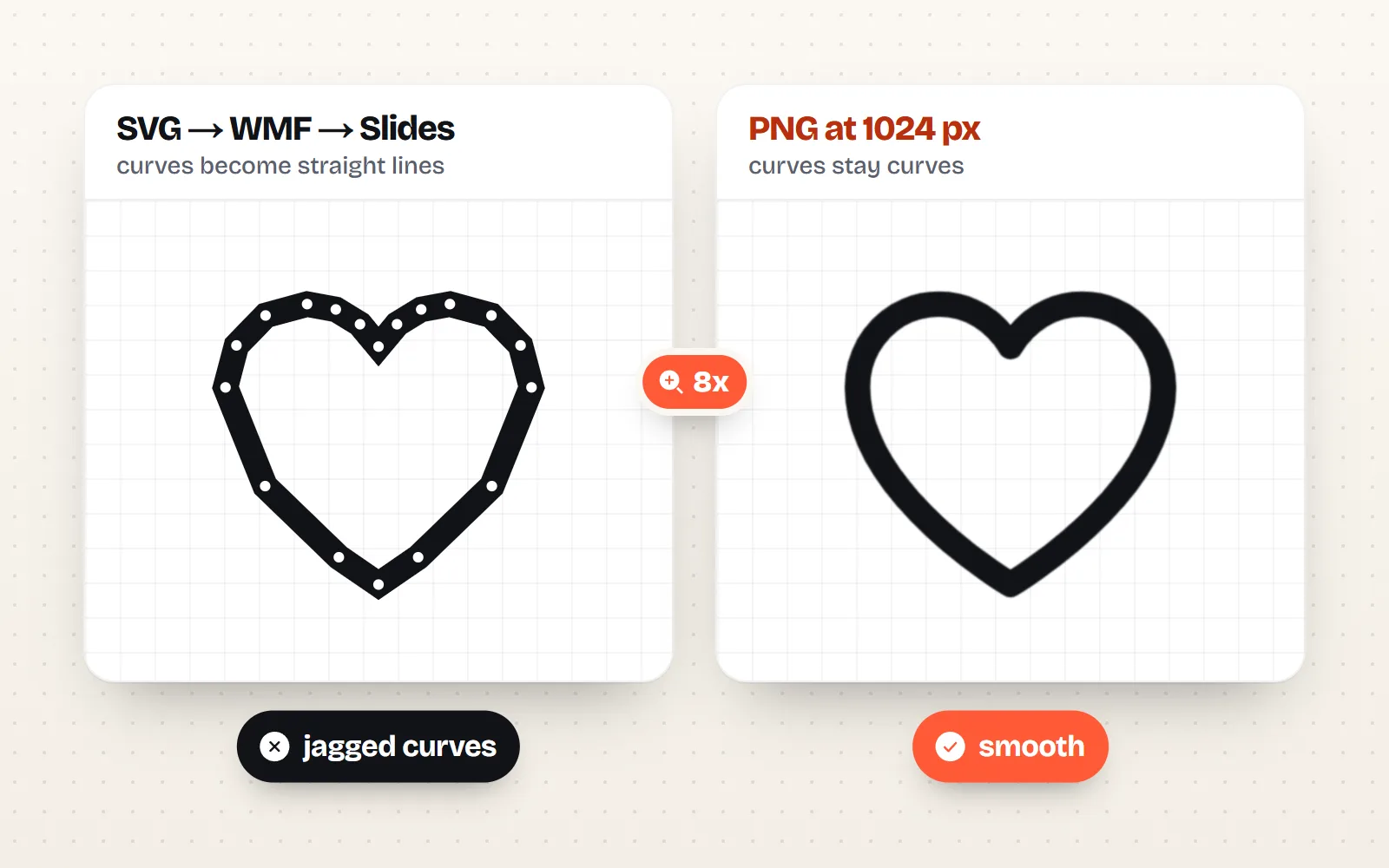
There are two more catches. The route usually relies on a third-party converter connected to your Google Drive, which some school and work accounts block. And the shape you end up with is often split into many small pieces, so recolouring it means clicking each one.
What about EMF, PDF or Google Drawings?
- EMF is WMF’s newer sibling and does have proper curve records, so it can keep icons smoother. You still need a converter you trust, and results vary between converters.
- PDF cannot be inserted into a slide at all. You would have to turn it back into an image first, which puts you back at PNG.
- Google Drawings is only a middle step in these tricks: it is where the converted shape gets opened so you can copy it. It does not make SVG work in Slides.
If you need dozens of editable vector shapes and have no PowerPoint, the EMF route can be worth an afternoon. For a handful of icons on a deck, it is not.
What is the best way to get a sharp icon into Google Slides today?
Use a PNG that is big enough. A PNG is a grid of dots, so it only goes blurry when it is stretched past its size. Give Slides more dots than the screen will ever show and nobody can tell it apart from a vector.
A simple rule: think about how wide the icon will be when the slide fills a full HD screen (1,920 px across), then double it. The extra covers sharp laptop screens, 4K projectors and zooming in while you edit.
| How big the icon is on the slide | About this wide on a full HD screen | Download this PNG size |
|---|---|---|
| Small, next to a bullet point | 100 to 200 px | 256 to 512 px |
| Medium, one of three or four in a row | 300 to 500 px | 1024 px |
| Big, half the slide | about 960 px | 2048 px |
| Huge, a full-slide backdrop | about 1,920 px | 4096 px |
How do you add a sharp icon to Google Slides in under a minute?
- 1Find the icon
Search the icon library in everyday words, like “idea”, “money” or “team”. Open the icon’s page, for example the lightbulb icon.
- 2Set the colour first
Type your brand colour or pick one. This is the step that saves you trouble later, because Slides cannot set an exact colour on a PNG.
- 3Choose the size
Use the table above. 1024 px is a safe default for most slide icons.
- 4Copy image or Download PNG
Copy image puts the PNG on your clipboard; press Ctrl+V (⌘+V on a Mac) on your slide. Or download the PNG and use Insert › Image › Upload from computer.
- 5Resize from a corner
Drag a corner handle, never a side one, so the icon keeps its shape.
How do you keep icons recolourable in Google Slides?
This is the real loss with PNG: once it is on the slide, it is one colour. You have three ways around it, from easiest to most work.
- 1Download again in the new colour
It takes ten seconds and gives you the exact colour. Keep the icon page open in a tab while you build the deck.
- 2Use Recolor for quick tints
Select the PNG, open Format options › Recolor. Slides offers a few tints based on your theme. Fine for a draft, but you cannot type a brand colour.
- 3Make real shapes through PowerPoint
Insert the SVG in desktop PowerPoint (Microsoft 365 or 2019 and later), choose Convert to Shape, save the .pptx, then import it into Slides with File › Import slides. Slides turns PowerPoint shapes into its own, which you can fill with any colour.
The PowerPoint route is the only way to get true vector icons into Slides without a converter. It is not perfect: test one icon first, because shapes with holes or many parts can shift a little in the conversion. Our PowerPoint downloads won’t help here, by the way. The ready-made slide from an icon page holds the icon as an SVG plus a sharp PNG copy, and Google Slides shows the PNG copy. It looks crisp, but it is still a picture.
Choose the colour and size on the icon page, then copy or download. Use one style for the whole deck, and a big PNG for big icons.
Stretch a small PNG to fill the slide, or run icons through a WMF converter and hope the curves survive.
Which icon styles work best in Google Slides?
Because Slides takes PNG, every style works the same way, including the colourful ones that would never fit in an icon font. Line and solid are the safe picks for business decks. For a title slide or a section divider, a richer style such as Gloss style or Clay style gives you an illustration without any design work.
Whatever you choose, keep to one style per deck so slides feel like a set. Our longer guide to icons in presentations covers sizes, spacing and layouts that work, and SVG vs PNG icons explains when each file type is the right one.
The short answer
Google Slides takes PNG, JPEG and GIF, not SVG, and that has not changed in 2026. Skip the WMF detour: download a transparent PNG about twice the size it will show, in your exact colour, or press Copy image and paste. If you truly need editable shapes, go through desktop PowerPoint’s Convert to Shape. Find a matching set on our free icons for Google Slides page: every icon in every style, MIT licensed, no credit needed.
Frequently asked questions
Why does Google Slides say “unsupported image type” for my SVG?
Because Slides only takes PNG, JPEG and GIF images. Google’s Slides documentation says images must be under 50 MB, no larger than 25 megapixels, and in one of those three formats. Download a PNG version of the icon instead.
What PNG size should I use for icons in Google Slides?
Take the width the icon will fill on a full HD screen and double it. A small icon next to a bullet point needs about 256 to 512 px; an icon that fills half the slide needs about 2048 px. Larger is fine, as long as you stay under 25 megapixels.
Can I change the colour of a PNG icon in Google Slides?
Only roughly. Format options › Recolor offers a few preset tints based on your theme, and you cannot type an exact colour. The clean way is to pick your exact colour on the icon page before you download or copy.
Does the convert-to-WMF trick still work?
It can still get a shape into Slides, but the result is often jagged. WMF has no record type for smooth Bézier curves, so converters cut every curve into short straight lines. It also depends on a third-party Drive app. A large PNG looks better with less work.
Can I import a PowerPoint file with SVG icons into Google Slides?
Yes. Slides imports .pptx files, but an SVG picture inside usually comes through as a flat picture. If you want shapes you can recolour, use Convert to Shape in desktop PowerPoint before saving. Check each icon after import.
Will Google Slides ever support SVG?
Google has not announced it. People have asked on Google’s own help forum for years, and as of November 2026 Google’s documentation still lists only PNG, JPEG and GIF.
Sources and notes
- Google Slides API: CreateImageRequest (“less than 50 MB… 25 megapixels… PNG, JPEG, or GIF”), checked Nov 2026
- Google Docs Editors Help: Crop & adjust images (Recolor, Adjustments), checked Nov 2026
- Google Drive Help: Files you can store in Google Drive (presentations up to 100 MB when converted), checked Nov 2026
- Google Docs Editors Community: “Why in 2025 cant we use svg (vector icons) in Google Slides?”
- Microsoft Open Specifications: [MS-WMF] RecordType enumeration (no Bézier record), checked Nov 2026
- phdesign: Adding Font Awesome icons to Google Slides (May 2016, the original WMF trick)
Facts about other icon sets were checked against their official sites in November 2026. Libraries change, so check the links above for the latest numbers.