a plain-English guide
Custom iPhone app icons in iOS 26 and iOS 27
Shortcuts is still the only way to put your own picture on an app. Here are Apple’s exact steps, the honest story on the banner, what Dark, Clear and Tinted do to your custom icons, and how to hide the originals.
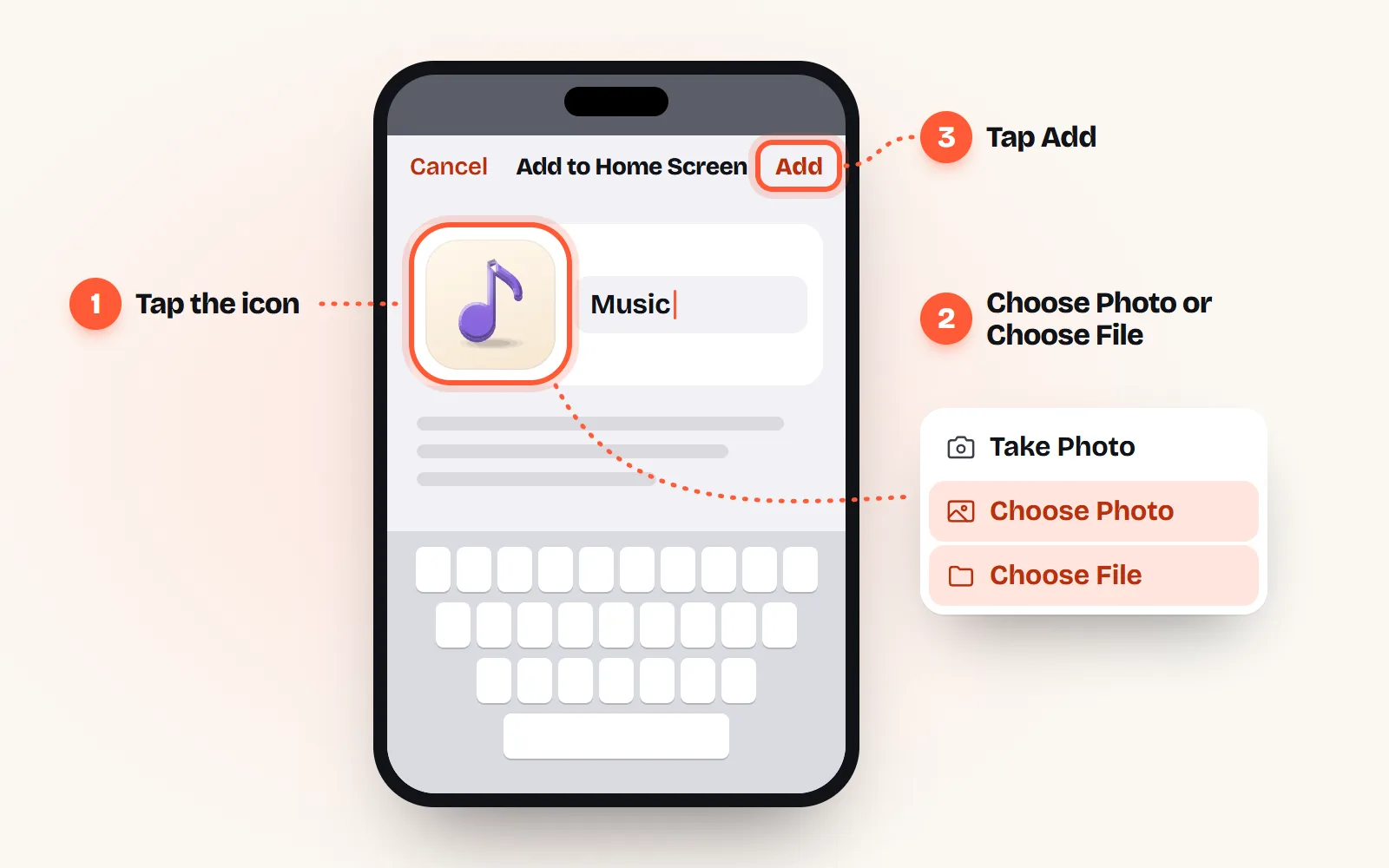
- The method has not changed: in Shortcuts, make a shortcut with the Open App action, open its Details, tap Add to Home Screen, tap the icon, choose Take Photo, Choose Photo or Choose File, and tap Add. That is Apple’s documented route in iOS 26 and iOS 27.
- The banner: Apple’s guide does not mention one. Since iOS 14.3 a custom icon opens the app directly with a small Shortcuts banner; on iPhones with the Dynamic Island it shows as a short animation there instead. Old workarounds broke with updates, so test one icon first.
- Dark, Clear and Tinted (Edit, then Customize) restyle real app icons. Apple does not document what they do to a picture you chose, and 2026 reports say it stays exactly as you made it. Pick an image that looks right in both light and dark.
- Trade-offs: custom tiles show no notification badges and no app quick actions. Keep the apps you need badges for (Messages, Mail) as real icons.
- Tidy up with Remove App, then Remove from Home Screen: the app moves to App Library and is not deleted. Use a square 512 or 1024 px PNG with a background colour.
On this page 8 sections
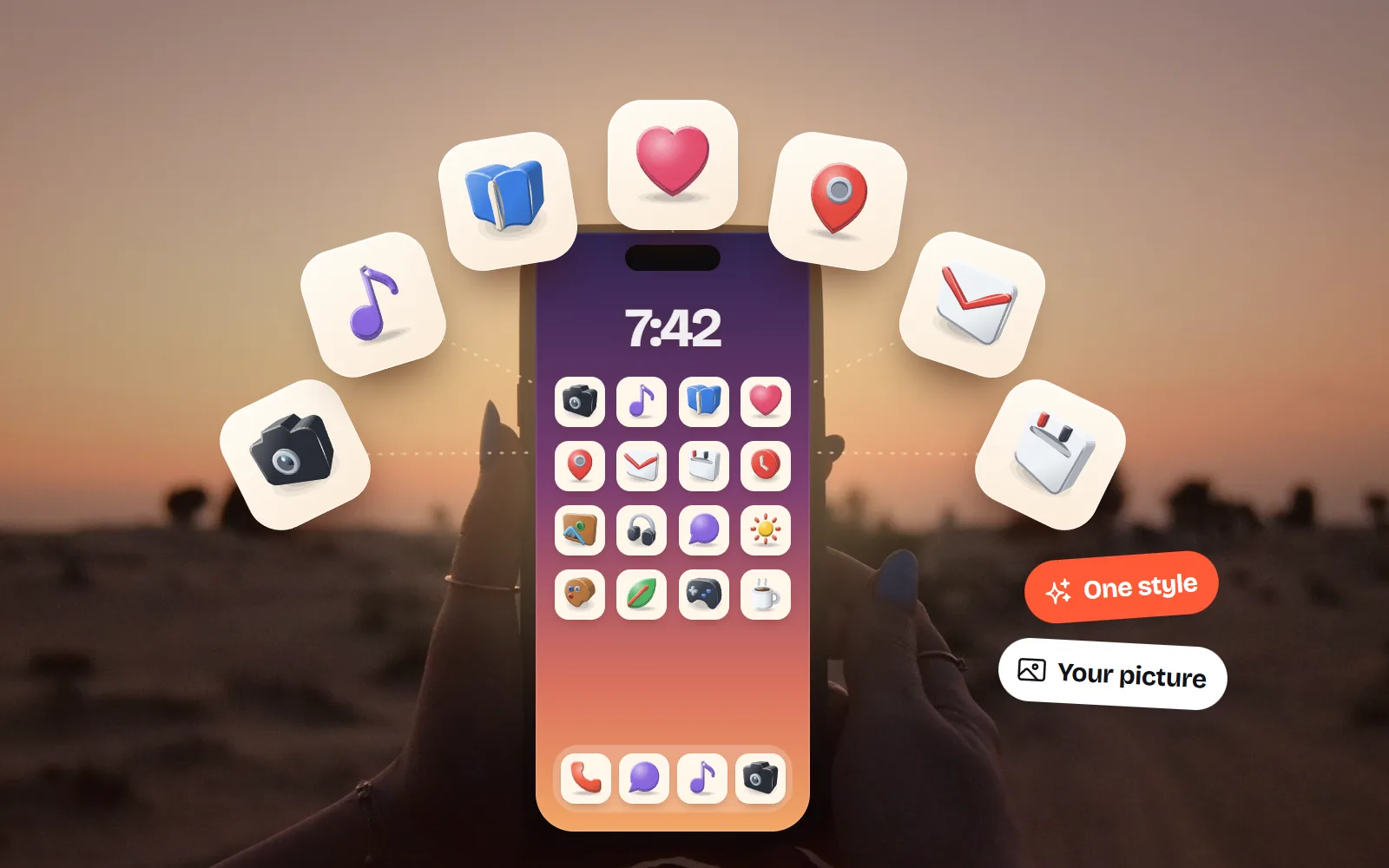
To make custom app icons on iPhone in iOS 26 or iOS 27, use the Shortcuts app: create a shortcut with the Open App action, open its Details, tap Add to Home Screen, tap the icon and choose your picture. The new tile opens the real app. iOS still has no way to change an app’s own icon, and the built-in Dark, Clear and Tinted modes restyle icons but cannot use your picture.
iOS 27 arrived on 14 September 2026, and the steps are the same as in iOS 26. What keeps confusing people is everything around them: the banner, badges and how custom tiles behave next to tinted icons. This guide sticks to what Apple documents, says clearly what is only reported by users, and was checked in November 2026. For moods and matching sets, see aesthetic icons; here we go deep on iOS itself.
How do I make a custom app icon on iPhone, step by step?
First get your picture onto the phone (Photos or Files), then follow Apple’s Shortcuts guide:
- 1Make the shortcut
Open the Shortcuts app and tap + for a new shortcut. Tap Add Action, search for Open App, add it, then tap the App placeholder and choose the app you want to open.
- 2Name it
Tap the shortcut’s name at the top, choose Rename and type something short. Tap Done.
- 3Open Details
In your shortcuts collection, tap the shortcut’s more button and choose Details, then tap Add to Home Screen.
- 4Choose your picture
Tap the icon under Home Screen Name and Icon. Apple lists three choices: Take Photo, Choose Photo (from Photos) and Choose File (from Files). Pick your PNG.
- 5Name the tile and add it
Tap the name to change what shows under the icon, then tap Add. The tile appears on your Home Screen.
Does the Shortcuts banner still appear in iOS 26 and iOS 27?
This is the question with the most contradictory answers online, so here is what each source actually says:
| What | Source and date | What it says |
|---|---|---|
| Apple’s own guide | Add a shortcut to the Home Screen, checked November 2026 | No mention of a banner, a delay or notifications |
| iOS 14.3 | 9to5Mac, 18 November 2020 | The Shortcuts app no longer opens first; a compact banner appears at the top instead |
| Dynamic Island iPhones | MacRumors, 26 September 2022 | On iPhone 14 Pro, a small animation in the Dynamic Island replaces the banner, and the delay is gone; other models still get the banner |
| iOS 26 | Apple Community, December 2025 | Answer: Apple removed user control over when Shortcuts banners appear |
| 2026 how-to guides | Several, mid 2026 | They disagree: some say the flash is gone, others say a brief indicator still shows |
Our honest reading: on any iPhone with the Dynamic Island you will see, at most, a quick animation up there as the app opens. On an iPhone with a notch or a Home button, expect a small banner. There is no setting to turn it off. Workarounds that switched off Shortcuts notifications in Screen Time, or ran an automation, have a long history of breaking with updates. Make one icon, live with it for a day, then decide.
What do Dark, Clear and Tinted icons do to custom icons?
Since iOS 18, and with the Liquid Glass look in iOS 26, you can restyle every app icon at once. Apple’s steps: touch and hold the Home Screen background until the icons jiggle, tap Edit, then Customize. You can make icons larger (names disappear), choose Dark or Auto, choose Clear (translucent) or choose Tinted with a colour and saturation slider or an eyedropper. iOS 27 adds a slider in Settings to set how clear or tinted Liquid Glass looks.
These modes work on real app icons. Apple does not document what they do to a picture you chose for a shortcut. 2026 guides report that the picture shows exactly as you made it in Clear and Tinted, and the popular 2024 MacRumors trick of making dark versions of icons by hand only makes sense because Dark mode does not darken your picture for you. Either way, plan for your picture to stay the same.
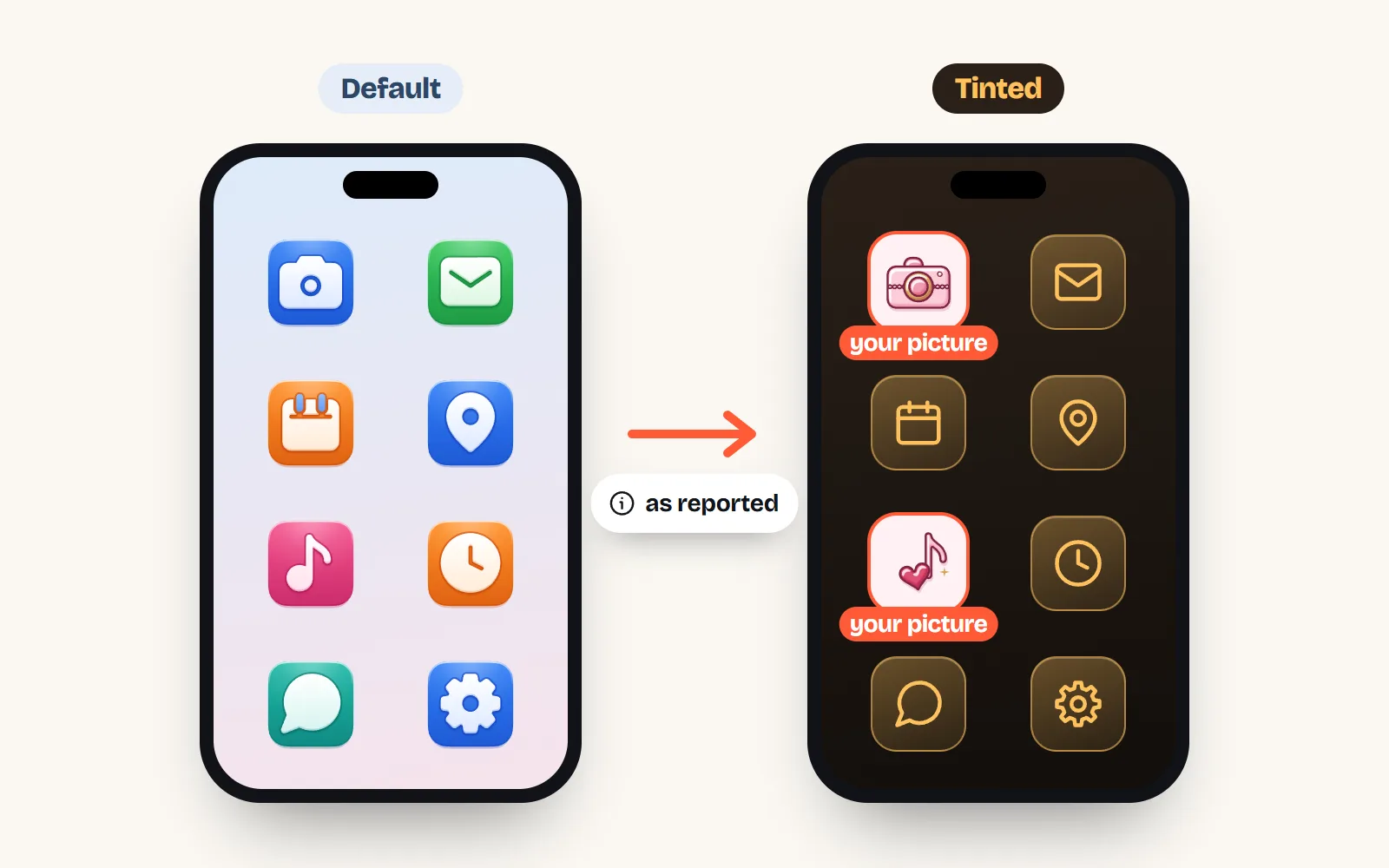
Pick a picture with its own background that looks good on both a light and a dark wallpaper, such as a mid-tone tile with a white or dark icon on it.
Use a see-through black line icon. With Dark mode on, it can vanish into a dark wallpaper, and iOS will not fix it for you.
What do I lose with a custom app icon?
| Real app icon | Custom Shortcuts tile | |
|---|---|---|
| Opens the app | After a brief indicator | |
| Notification badges | ||
| Quick actions on long press | Reported missing | |
| Dark, Clear and Tinted styling | Not documented; reported to stay as is | |
| Your own picture |
A good compromise: give custom tiles to the apps you open for content (camera, music, maps, notes) and keep real icons for the apps that talk to you (Messages, Mail, Phone), so you never miss a badge.
How do I hide the original app icons?
- 1Remove from Home Screen
Touch and hold the original app, tap Remove App, then Remove from Home Screen. Apple’s guide says the app moves to App Library and is not deleted. Do not tap Delete App: that removes the app and its data.
- 2Find it later
Swipe left past your last Home Screen page to reach App Library, then search or browse. Your custom tile keeps working.
- 3Hide whole pages (optional)
Touch and hold the wallpaper, tap the dots at the bottom and untick pages you do not need. App Library moves closer.
What size should a custom iPhone app icon be?
Use a square PNG of 512 or 1024 pixels. iOS shrinks it to the Home Screen size, so bigger images stay crisp, and a square avoids cropping. Home Screen tiles are small, so choose a simple, bold object and keep the drawing away from the edges, because iOS rounds the corners.
To get one from with icons:
- 1Pick the icon
Search the library with an everyday word, or start from the free app icons page, which has ready tiles at 256, 512 or 1024 px.
- 2
- 3Download a PNG
Open More formats, choose PNG at 512 or 1024 px, set a background colour (or White) and Small padding, then save it to Photos or Files.
Need the sizes real app icons use, rather than shortcut tiles? App icon vs UI icon explains the difference, and the icon sizes guide covers screens and slides.
What changed since the old answers?
- iOS 14 guides say the Shortcuts app opens first. That stopped with iOS 14.3 in late 2020.
- “Turn off the banner in Screen Time” fixes are fragile and have been reported to break with updates; there is still no setting in iOS 26 or 27.
- iOS 18 and 26 added Dark, Clear and Tinted icons, which restyle real apps, not your pictures, and iOS 27 added a Liquid Glass slider.
- Android’s story changed even more; see how to change app icons on Android.
Frequently asked questions
Does the Shortcuts banner still appear in iOS 26 and iOS 27?
Apple does not document it either way. What users and reviewers have reported: since iOS 14.3 (late 2020) a custom icon opens the app directly with a small Shortcuts banner at the top; on iPhones with the Dynamic Island (iPhone 14 Pro and later) it appears as a brief animation in the island with no delay. 2026 guides disagree on whether it is gone, so make one icon and test it on your phone.
Can I turn the Shortcuts banner off?
There is no setting for it. Workarounds that toggled Shortcuts notifications in Screen Time or ran an automation have been reported to stop working with iOS updates, and an Apple Community answer from December 2025 says Apple removed user control over when Shortcuts banners appear. On Dynamic Island iPhones the indicator is small enough that most people stop noticing it.
Do custom app icons work with Dark, Clear and Tinted icons?
Those modes, under Edit, then Customize on the Home Screen, restyle real app icons. Apple does not say what happens to a picture you chose for a shortcut, and 2026 reports say the picture is shown as is. A dark or tinted look therefore has to be built into the image itself.
Why don’t my custom icons show notification badges?
Because the tile is a shortcut that opens the app, not the app itself. Badges stay on the real app, which you can still find in App Library. Keep apps whose badges you rely on as normal icons.
What size should a custom iPhone app icon be?
Use a square PNG of 512 or 1024 pixels. iOS scales it down to the Home Screen size, so a big image stays crisp, and a square avoids awkward cropping. Give it a background colour so it reads as a tile.
How do I get the original icons back?
Touch and hold your custom icon and delete it (this deletes only the shortcut). Then open App Library, find the real app and drag it back to the Home Screen.
Sources and notes
- Apple Shortcuts User Guide: Add a shortcut to the Home Screen on iPhone or iPad (checked November 2026)
- Apple Shortcuts User Guide: Create a custom shortcut on iPhone or iPad (iOS 27)
- Apple iPhone User Guide: Customize apps and widgets on the Home Screen (Dark, Clear, Tinted; checked November 2026)
- Apple iPhone User Guide: Remove or delete apps from iPhone
- Apple iPhone User Guide: Lock or hide an app
- Apple Newsroom: Major updates for Apple’s software platforms are now available (iOS 27, 14 September 2026)
- 9to5Mac: iOS 14.3 beta 2 runs shortcuts from the home screen without launching the Shortcuts app (18 November 2020)
- MacRumors: iPhone 14 Pro, using custom app icons now less annoying thanks to Dynamic Island (26 September 2022)
- Apple Community: Shortcuts banner on iOS 26 (22 December 2025)
- MacRumors: iOS 18, create dark mode icons for apps that won’t go dark (31 October 2024)
Facts about other icon sets were checked against their official sites in November 2026. Libraries change, so check the links above for the latest numbers.