a plain-English guide
How to change a folder icon on Mac or Windows 11
macOS Tahoe gave folders colours, symbols and emoji, and Windows still wants a real .ico file. Here are both, plus how to use your own picture without it breaking next week.
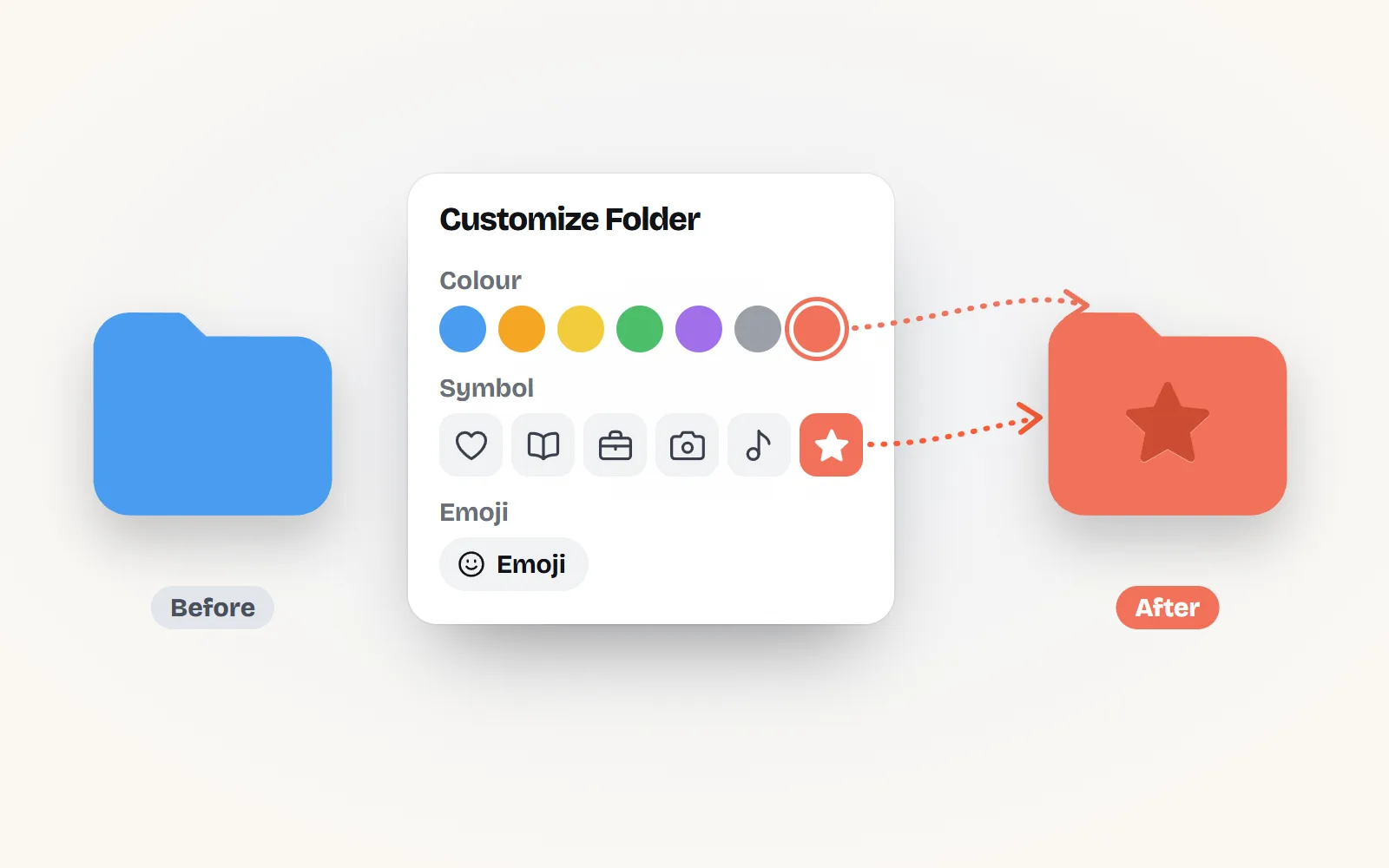
- Mac, the new way (macOS Tahoe 26 and later): select a folder, open the Action menu (or Control-click), choose Customize Folder, then pick a colour, a symbol or an emoji.
- Mac, your own picture: copy an image (Apple suggests opening it in Preview and choosing Edit, Copy), select the folder, File, Get Info, click the small icon at the top and Edit, Paste. Edit, Cut puts the original back.
- Windows 11: right-click the folder, Properties, Customize, Change Icon, then Browse to an icon file. It wants a real .ico: renaming a .png to .ico does not convert it.
- Keep the .ico in a permanent folder. Windows remembers where the file is (in a hidden desktop.ini), so moving or deleting it later brings the plain folder back.
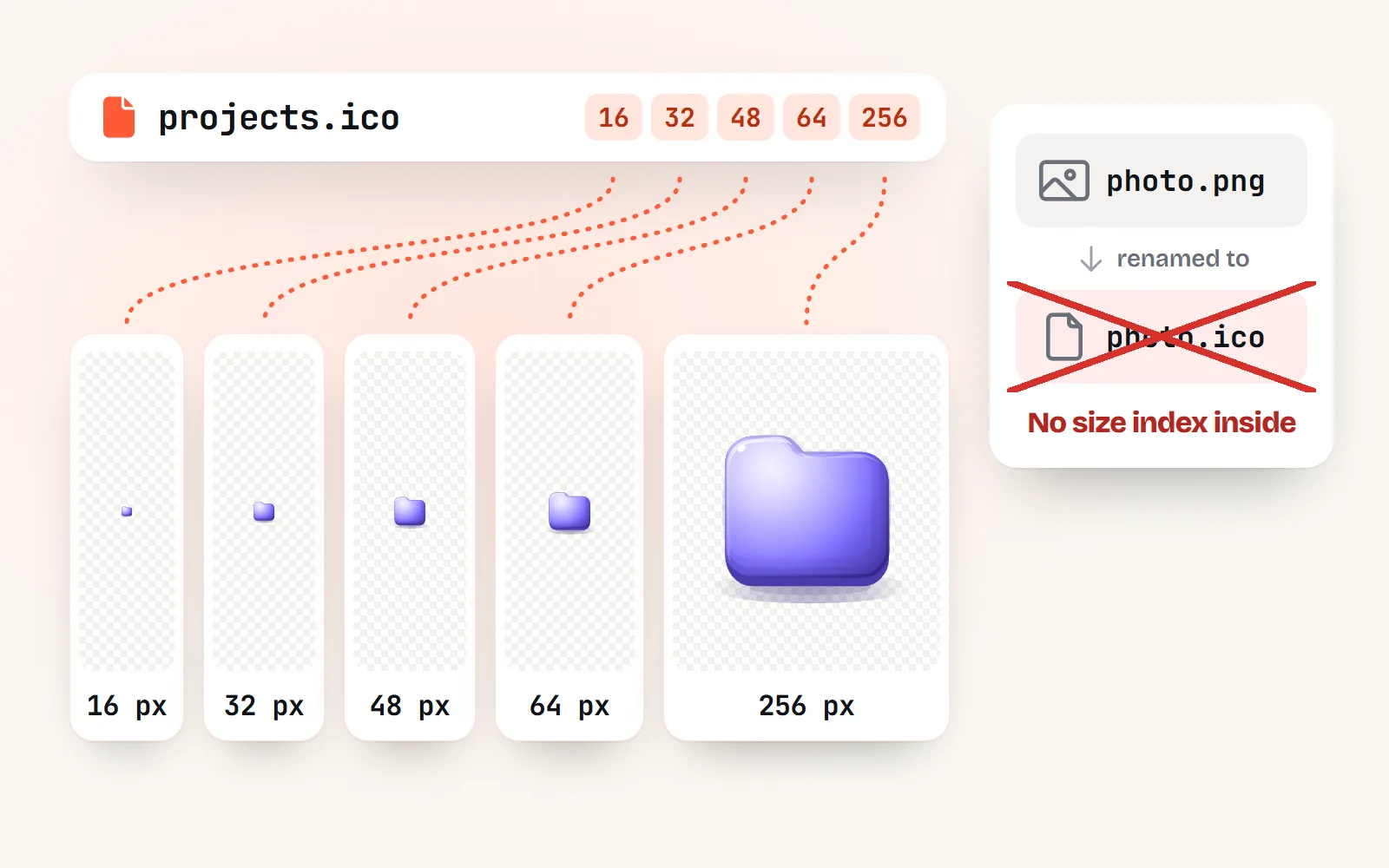
- with icons gives you both: a PNG in any size and colour for the Mac, and an ICO with 16, 32, 48, 64 and 256 px inside for Windows.
On this page 8 sections
On a Mac running macOS Tahoe 26 or later, select a folder, open the Action menu (or Control-click it) and choose Customize Folder to give it a colour, a symbol or an emoji; for your own picture, copy the image, open the folder’s Get Info window, click the small icon at the top and paste. On Windows 11, right-click the folder, choose Properties, then Customize and Change Icon, and browse to a real .ico file that you keep somewhere permanent.
Most guides that rank for this question were written before 2025, so they know only the Get Info paste on Mac, and many still tell Windows users to “rename the PNG to ICO”, which does not work. Both systems were checked against Apple and Microsoft documentation in November 2026. If you want icons to put on folders, every one of the 1000 icons on with icons comes in 34 styles, as a PNG for the Mac or an ICO for Windows.
How do I change a folder icon on a Mac in macOS Tahoe?
macOS Tahoe (version 26, released in 2025) added folder customisation to the Finder, and macOS 27 keeps it. Apple’s steps:
- 1Select the folder
In the Finder, click the folder once. You can also Control-click (right-click) it to get the same menu.
- 2Open Customize Folder
Click the Action button in the Finder toolbar (the circle with three dots) and choose Customize Folder.
- 3Pick a colour
Click one of the coloured circles to tint the folder.
- 4Add a symbol or emoji
Choose a symbol from the list (it looks pressed into the folder), or click Emoji and pick one (it sits on top like a sticker).
Apple notes you can customise your Home folder, but not folders that come with your Mac, such as Applications, Library, System and Users.
Can I change the colour of every folder at once?
Yes. Open System Settings, click Appearance and choose a Folder color. Apple says the option shows when the Icon & widget style is Default, Dark or Clear. With Tinted, it becomes Icon, widget, & folder color, which sets icons, widgets and folders together.
How do I use my own picture as a folder icon on a Mac?
This older route still works in Tahoe, and it is the only way to use any picture you like, such as a with icons illustration:
- 1Copy the image
Apple’s guide: double-click the image to open it in Preview, then choose Edit, Copy. A square PNG of 512 or 1024 px looks crisp even in the Finder’s biggest icon view.
- 2Open Get Info
Select the folder, then choose File, Get Info (or press Command-I).
- 3Click the small icon
In the Info window, click the small icon at the very top, below the title bar. It gets a highlight.
- 4Paste
Choose Edit, Paste. The folder takes on your picture.
To undo it, open Get Info again, click the same small icon and choose Edit, Cut. If Paste is greyed out, Apple says you probably clicked the large preview at the bottom of the window instead of the small icon at the top.
Two notes from Mac watchers: a pasted picture replaces the folder entirely, so it has no folder colour to change and tags will not recolour it. And if a folder already has a Tahoe symbol or emoji, it is simplest to clear that in Customize Folder first, so only one look is in play.
How do I change a folder icon in Windows 11?
- 1Open Properties
Right-click the folder and choose Properties.
- 2Go to Customize
Open the Customize tab. Under Folder icons, click Change Icon.
- 3Browse to your .ico
Pick one of Windows’ own icons, or click Browse and choose your .ico file. Select it and click OK.
- 4Apply
Click Apply, then OK. To go back later, return here and click Restore Defaults.
The same Change Icon button sits on the Shortcut tab of a desktop shortcut’s Properties. For This PC, Network and Recycle Bin, Microsoft’s route is Settings, Personalization, Themes, Desktop icon settings.
If there is no Customize tab, you may be looking at a special location (a drive, for example) rather than an ordinary folder. Microsoft Q&A threads also describe the tab going missing after updates; the simple workaround is to make a shortcut to the folder and change the shortcut’s icon.
Why doesn’t renaming a PNG to ICO work?
Because the name is not the file. A .ico file starts with a small index that tells Windows which sizes are inside (small ones such as 16 px for lists, up to 256 px for extra large icons) and where each one lives. A PNG renamed to .ico is still a PNG inside, with no index, so Windows cannot read it and the icon stays blank or the dialog refuses it.
| File | Mac folder (Get Info) | Windows Change Icon | Notes |
|---|---|---|---|
| PNG | Copy and paste the image | Not accepted | Best for the Mac; use 512 or 1024 px |
| PNG renamed to .ico | Looks like an ICO, isn’t one | The inside is unchanged | |
| Real ICO (several sizes) | Not needed | Ideal: 16, 32, 48 and 256 px inside | |
| SVG | Convert to PNG first | Great for design apps, not for folder icons |
An ICO made the modern way can hold PNG pictures inside it (Windows has read those since Vista), which is why a good converter keeps your see-through edges. More on the two picture formats in SVG vs PNG icons.
Where should I keep icon files so they don’t break?
Windows does not copy the icon into the folder. It writes a hidden desktop.ini file inside the folder that points to your .ico by name and location. Microsoft’s documentation for that file says .ico is the preferred type. So:
Make one permanent folder for icons, such as C:\Users\you\Icons, put every .ico there first, and only then apply them.
Apply an icon straight from Downloads or the desktop, then tidy up later. The moment the .ico moves, the folder goes back to plain yellow.
For the curious, the line inside desktop.ini looks something like this (you only see the file with hidden and protected system files shown):
[.ShellClassInfo]
IconResource=C:\Users\you\Icons\projects.ico,0
My custom icon won’t show or disappeared: what now?
- Check the file is still there, at the same path, with the same name.
- Unblock it. Right-click the .ico, choose Properties, and if you see Unblock at the bottom of the General tab, tick it and click Apply. A Microsoft Q&A moderator suggested this in June 2026.
- Rebuild the icon cache. Windows keeps old icons in a cache; the same Q&A thread lists the steps to rebuild it.
- Recent update? In June 2026 users reported custom icons vanishing after a Windows update, and one fixed it by uninstalling that update. Microsoft has not confirmed it as a known issue.
How do I get an ICO or PNG folder icon from with icons?
- 1Pick an icon and style
Search the library for what the folder holds (“invoice”, “photos”, “music”), then choose a style. Bold styles such as solid, clay or dock stay clear at small sizes.
- 2Open More formats
On the icon page, open More formats, then Websites & apps.
- 3For Windows, choose ICO
The ICO has 16, 32, 48, 64 and 256 px inside, ready for the Change Icon dialog. Pick a background colour or keep it see-through, and add padding if you like.
- 4For the Mac, choose PNG
Choose PNG at 512 or 1024 px, or press Copy image. The free PNG icons page has quick downloads too.
Making matching icons for a whole drive, or for your phone too? Use one style and one palette for everything; how to keep icons consistent shows how, and the phone guides for iPhone and Android reuse the same PNGs.
What changed since the old answers?
- Mac: before macOS Tahoe (2025) the only option was the Get Info paste. Now Customize Folder adds colours, symbols and emoji, and Appearance settings set a default folder colour.
- Windows: the Change Icon dialog has not changed in years, but “rename .png to .ico” advice never worked, and many old ICO converter tools are gone. Download a real multi-size ICO instead.
Frequently asked questions
How do I add an emoji to a folder on a Mac?
On macOS Tahoe 26 or later, select the folder, open the Action menu in the Finder toolbar (or Control-click the folder), choose Customize Folder, click Emoji and pick one. Apple says you can customise your Home folder but not folders that come with the Mac, such as Applications, Library, System and Users.
How do I change the colour of all folders on a Mac?
Open System Settings, then Appearance, and choose a Folder color. Apple notes the option appears when the icon and widget style is Default, Dark or Clear; with Tinted, it becomes Icon, widget, & folder color and sets all three together.
Why is Paste greyed out in Get Info?
Apple’s guide says you probably clicked the large preview icon instead of the small icon at the very top of the Info window, below the title bar. Click the small one, then choose Edit, Paste. Also make sure an image, not a file name, is on the clipboard.
Can I use a PNG as a folder icon in Windows 11?
Not directly. The Change Icon dialog looks for icon files (.ico, or icons stored inside .exe and .dll files). Convert the PNG to a real multi-size ICO first, or download an ICO directly. Renaming a .png to .ico only changes the name, not the file inside, so Windows cannot read it.
Why did my custom folder icon disappear in Windows?
Usually because the .ico file moved, was renamed or was deleted: Windows stores only its location. Put it back, or point the folder to its new place. If the file is where it should be, try Unblock in the .ico file’s Properties and rebuild the icon cache. In June 2026 some users also reported custom icons vanishing after a Windows update; Microsoft has not confirmed it.
How do I change a desktop shortcut icon in Windows 11?
Right-click the shortcut, choose Properties, then on the Shortcut tab click Change Icon and Browse to your .ico. For This PC, Network and Recycle Bin, open Settings, Personalization, Themes, Desktop icon settings.
Sources and notes
- Apple Mac User Guide: Customize the look of folders and files on Mac (macOS Tahoe 26 and macOS 27; checked November 2026)
- Apple Mac User Guide: Change Appearance settings on Mac (Folder color)
- The Eclectic Light Company: Customising folders in Tahoe (18 September 2025)
- Microsoft Learn: How to customize folders with Desktop.ini (IconFile, .ico preferred)
- Microsoft Q&A: How to change folder icon on Windows 10 and 11 (May 2025)
- Microsoft Q&A: After latest Windows 11 update I can no longer set custom icons (June 2026)
- Microsoft Support: Customize the desktop icons in Windows
Facts about other icon sets were checked against their official sites in November 2026. Libraries change, so check the links above for the latest numbers.